What's new
Photoshop Gurus Forum

Welcome to Photoshop Gurus forum. Register a free account today to become a member! It's completely free. Once signed in, you'll enjoy an ad-free experience and be able to participate on this site by adding your own topics and posts, as well as connect with other members through your own private inbox!

Illustrator Extending a line of type.


Oh for Chrissake!

Well-Known Member
Messages
83
Likes
7
I choose the Type on a Path , or Vertical Type on a Path tool, and I start to type. All fine. Now, I've typed too much and the "+" sign appears in a little box telling me I have too much text for the line itself.

I want to extend the line to add more text, in other words, I want more space and/or more line to hold the overspill. This could also apply to the situation where I return later and want to extend the line and type some more.

Easy enough to extend the line, but for some reason typing does not produce more text. Moving the bracket only moves the text, it doesn't give me more room.

How to create more room on the line to handle the overspill?

Thanks!

OFC
 
Does the text exceed the size of the document? maybe you can make the document bigger (wider) or decrease the size of font and shrink the spacing?... not sure I understand
 
Looks like just straight line, why not use use guides? Or create bigger path?
 
Click off the text area to de-select it. With the Direct Selection Tool, click on the end point of the line and drag to lengthen.

Ahhh, you learn well from iDad, grasshopper!:bustagut:
 
Hi Hawkeye.

I typed a line of text using the Type Along Line of Text tool. The line was created with the Pen tool, and had a few curves in it. I tried using your above advice to extend the line, but that didn't work in this case. Any suggestions?

Thank you!

OFC
 
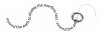
Extending the CURVED line object to capture text overspill.jpg

Hopefully this image makes it clearer.

I created the curved line (up to the circled part) and then used the Type on a Path tool to paste in some text. It went too far and I've got the "+" sign, indicating overspill. Again, where I circled is where the original curved line ended.

So, I wanted to extend the line after the circle, create an extension to capture the overspill. I clicked on the end anchor point with the Pen Tool (in "/" mode), held down Alt, and dragged to create a directional handle. Then I clicked with the Pen tool (normal mode) again and dragged to create the curved line extension after the circled part. But the overspill text doesn't appear like I thought it would.

I did try your advice first, but all that happened was that the original line kept moving around without extending at all. But it works like a charm on straight lines. Go figure.

Thanks!

OFC.
 
If I understand you correctly, you don't want to extend the existing line, but you want another line with the remaining text. If that is the case, use the selection tool to select the object. Now double click the red plus sign icon.
 

Back
Top