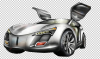
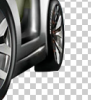
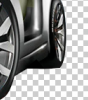
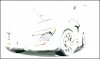
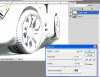
In cases where it is difficult to do a selection in the shadow areas, I'll often add a temporary "levels" adjustment layer, and pull the RH slider almost all the way to the left to bring out whatever detail is present in the shadows.
Often, this is all I need to do to make a decent selection in the shadow areas. For the most flexibility, I always save individual area selections separately.
Although this technique certainly works well with the manual selection tools (eg, pen, lasso, polygonal, etc.), I find it most useful and a tremendous time saver in that it allows me to use automated selection tools in cases where the automated tools would not work well on the original image. Examples of automated tools include quick select, color range, and even 3rd party selection plugins such as onOne's Perfect Mask, Topaz's ReMask, Vertus' Fluid Mask, Asiva Select, etc..
Of course, one eventually has to merge the selection made on the normal image with any selections made on the brightened image. For this, using the options under Select / LoadSelection, eg, "add to", "subtract from", "intersect with") can be very helpful.
Finally, I should add that often the problem is not in the shadows, but in the highlight areas, or in the midtones (eg, fog scenes). The same technique (ie, using a temporary levels adjustment layer) works just as well in these cases -- just move both black and white endpoints to develop contrast where you need it.
Tom
PS - I first saw this technique suggested on a video tutorial by onOne Software at least 4 or 5 years ago, and it has been incredibly useful in my masking work.









 just in case I do adios amigo!:mrgreen: