
Photoshop Gurus Forum
Welcome to Photoshop Gurus forum. Register a free account today to become a member! It's completely free. Once signed in, you'll enjoy an ad-free experience and be able to participate on this site by adding your own topics and posts, as well as connect with other members through your own private inbox!
You are using an out of date browser. It may not display this or other websites correctly.
You should upgrade or use an alternative browser.
You should upgrade or use an alternative browser.
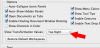
How do I hide the x,y box that appears when I'm moving an object?
- Thread starter JTL
- Start date



- Messages
- 24,260
- Likes
- 13,720
I completely agree with Hawkeye!
There are two main ways to center objects and text.
Centering requires a selection (marching ants).
If your centering an object or text to the overall document itself, you make a selection of the entire document by hitting Command/Control + A.
Next, highlight the layer in the Layers Panel containing the object or text you wish to center.
Go to LAYER > ALIGN LAYERS TO SELECTION > Choose Vertical Centers first.
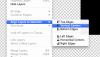
Repeat the above step and choose Horizontal Centers next.
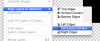
Hit Command/Control + D to deselect.
Like Hawkeye suggested and by far the easier way is to use the Move Tool.
Hit Command/Control + A.
Next, highlight the layer in the Layers Panel containing the object or text you wish to center.
Select your Move Tool (Hit V on your keyboard).
Hit both the Vertical Centers Icon and the Horizontal Centers Icon located in the Move Tool Option bar at the top.
Hit Command/Control + D to deselect.
There are two main ways to center objects and text.
Centering requires a selection (marching ants).
If your centering an object or text to the overall document itself, you make a selection of the entire document by hitting Command/Control + A.
Next, highlight the layer in the Layers Panel containing the object or text you wish to center.
Go to LAYER > ALIGN LAYERS TO SELECTION > Choose Vertical Centers first.
Repeat the above step and choose Horizontal Centers next.
Hit Command/Control + D to deselect.
Like Hawkeye suggested and by far the easier way is to use the Move Tool.
Hit Command/Control + A.
Next, highlight the layer in the Layers Panel containing the object or text you wish to center.
Select your Move Tool (Hit V on your keyboard).
Hit both the Vertical Centers Icon and the Horizontal Centers Icon located in the Move Tool Option bar at the top.
Hit Command/Control + D to deselect.
I can see where it would get in your way if you are trying to center the text by eye, but that isn't the best way to do it. Use the align options with the Move Tool.
I was going to do that but the options to do that are grayed out. I can't figure out why.

hawkeye
Guru
- Messages
- 2,186
- Likes
- 1,054
Make sure to select more than one layer, otherwise the options will not be available.I was going to do that but the options to do that are grayed out. I can't figure out why.
Make sure to select more than one layer, otherwise the options will not be available.
Ah ha that worked!
I love this forum. You guys are so helpful.
- Messages
- 24,260
- Likes
- 13,720
Fantastic! I always learn something from Hawkeye!
Here's another centering trick.
If I want to center the text within this Yellowish box.

Select the Move Tool (V).
I just Command/Control + Click the box's thumbnail to create a selection.
Then highlight the text layer.
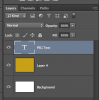

Then use the alignment controls in the options to center.

Command/Control + D to deselect.
Here's another centering trick.
If I want to center the text within this Yellowish box.
Select the Move Tool (V).
I just Command/Control + Click the box's thumbnail to create a selection.
Then highlight the text layer.
Then use the alignment controls in the options to center.
Command/Control + D to deselect.
Last edited: