What's new
Photoshop Gurus Forum

Welcome to Photoshop Gurus forum. Register a free account today to become a member! It's completely free. Once signed in, you'll enjoy an ad-free experience and be able to participate on this site by adding your own topics and posts, as well as connect with other members through your own private inbox!

I'm baffled, thought I had an idea of how to make this happen but I'm clueless


Noj

Member
Messages
8
Likes
0
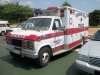
I need to do a mock up on this ambulance ~~>

ambulance.jpg

I need to "repaint" the body of the ambulance a solid burgundy color so I can create a mock up with graphics for a friend. Any suggestions on how to do this and make it look pretty decent?!?
 
1. Make a new layer. Set it's blending mode to "Darken"
2. Choose color you want.
3. Take brush and carefully paint over it. Use more hard brush that default.

Maybe try diferent blending mode from Darken. Soft Light or Color. Experementate.
 
Hi Noj

In Order to accomplish that you will have to select the whole body of the ambulance, i will suggest using the pen tool, it seems like the right tool to use on this job, Once finished whit the selection, using your prefer color just fill all your selection, and play whit blend modes, until you get something you are really happy whit.

This may help, Changing a Car's Color in Photoshop

Hope this helps.
 
I wonder if you took the image into lab mode and played with the a&b channels with Curves if you wouldn't find the right burgundy, etc. Then brush with a mask. I think this would make any reflections of the paint change, as well.
 
If you know how to operate the pen tool in Photoshop, then you have a great head start.
If not, or your knowledge is not very great of it, then restructure your knowledge with Youtube! (PEN TOOL TUT-
)
After you have the basic knowledge of the pen tool, outline the apparatus using the pen tool in layer mode.
dismiss the layers pen tool properties now, you can do this by right-clicking the layer the pen tool outline is on, and choose "Convert to smart object", after that right click the same layer, but this time choose "Rasterize Layer". Now its just a basic non-vector flat pixel image.
Now, hold the Control key "CTRL" and move your mouse cursor over the outline layers thumbnail, and now as your holding the CTRL key, click the tumbnail using a Mouse Left-Click.
You've selected the layers pixel boundaries, now poke the eye out of the outline layer, what you will want to do is go down to the images first layer, where the apparatus is, and press "CTRL" + "U" on your keyboard, this will give you a window to re-color the area that the marching ants boundary is selecting.... Move the sliders around until you are satisfied with the color you get (make sure the "Colorize" check box is checked). Done.

Note: make sure you do not select areas on the vehicle using the pen tool that are not supposed to be re-colored, because it will look generic, and very off realism.

I know, the way I explained it may seem a little off to you, sorry if you can not follow... It would be better if I could show you over a dragged out tutorial... But that would be "doing the most". haha

If your having trouble try to message me today and I will try to do it for you.
Hope I helped.

 
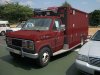
ambulance copy.jpgFixed the mask. Can reupload the .psd if needed.
Hope this helps.
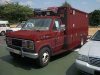
ambulance copy.jpg

Here is the .psd to see how it did it and you can tweek it to your liking. If you want the strips completely gone you should be able to manage it with this file. I kinda like the two tone myself.
 

Attachments

Last edited:

Back
Top