What's new
Photoshop Gurus Forum

Welcome to Photoshop Gurus forum. Register a free account today to become a member! It's completely free. Once signed in, you'll enjoy an ad-free experience and be able to participate on this site by adding your own topics and posts, as well as connect with other members through your own private inbox!

Low Que Montage - How to Seperate people with high detail


Bun-Bun

Member
Messages
7
Likes
1
I am trying to do a family portrait montage and I just can not seem to get it right. When I try it I lose lots of hair detail and my image loses all depth and looks fake.

I have very limited Photoshop experience. I have been trying to do this by manually brushing around the subjects with the eraser or using the pen tool to create a path to copy from. Both are not giving me the results I want.

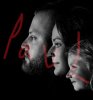
Here is an example of what I am trying to do.
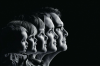
Family Low Que Montage.PNG
 
There is no edit button!

Wanted to add a link to the pictures I shot that I am working with but I can't post links :/
 
I know I can add them to the post but I was trying to direct link to the tiffs on my dropbox.

I exported them resized as jpegs for here though.

It's not the lighting I am questioning about. Its the montage'ing of the portrait profiles. Each portrait is shot separately and then brought together in photoshop. (At least that's how the original photographer describes it.)

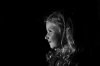
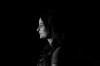
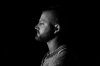
Here are the profiles I am working with.

DSC_0513.jpg
DSC_0562.jpg
DSC_0564.jpg
 
I read up on masks and I tried making a mask with with overlay brushes but I couldn't get the contrast high enough and there were lots of holes in my mask I couldn't get rid of. The parts I got looked really good but it wasn't complete.

I should have saved it and posted it but its gone now. I'm so lost with this.
 
Hi Bun,

Here's a quick (sloppy) run down on how Paul and I did this......

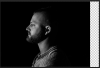
I opened all three photos in one Ps document. The Dad was the base or first layer. I moved him to the left.

Screen Shot 2013-08-08 at 7.47.19 AM.png

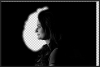
The Mom was the second layer and I added a layer mask. I repositioned her where I wanted her. I then used a combination of hard (close to the face) and soft brushes to mask the area where I wanted the Dad to show through.

Screen Shot 2013-08-08 at 7.47.31 AM.png

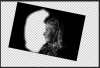
The Daughter was the top layer. I used cmd/cntrl + T to transform her to both size and position. I added a layer mask to her and again used a combination of both hard (closest to the face) and soft brushes to reveal both the Mom and the Dad in the two underlying layers.

Screen Shot 2013-08-08 at 7.47.41 AM.png

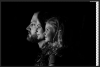
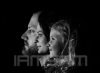
This is with all layers turned on.........

Screen Shot 2013-08-08 at 7.47.59 AM.png

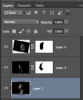
The layers panel........

Screen Shot 2013-08-08 at 7.48.13 AM.png

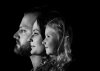
The final cropped image..........(as I stated I did this very fast, but you should take your time)

DSC_0564_02.png
 
Thanks! I followed your steps and I also found this video

http://www.youtube.com/watch?v=XLK7rm1J5ww

So using a combination of selection tools and the refine edges option and some brush work I came up with this. (I left room on the right for when the baby is born)

Family-Portrait-Montage.jpg

It's still not perfect but much better then I was getting.

Are there any good tutorials on brush techniques? Everytime I go in there with a brush I can't get around hair and fine detail good enough and it looks fake when I am done.
 
It's good, but notice that in the image you originally cited, the front of each person's face overlaps a substantially darkened, almost black area of the next larger face.

There are several ways to do this, but probably the easiest and most fool-proof (ie, non-destructive / reversible) way to do this with the images you have is to put an empty layer between the layers for the adjacent images. Then, put each of these empty layers in "Overlay" mode, and then paint black (low opacity, soft, many strokes) where you want to darken the next lower image.

Notice also that doing this means that you don't need to mask (eg, hair) so accurately.

HTH,

T
 
PS - I don't know these people, but, to my eye, Dad's face seems to be a bit too large, and is angled a bit too far upwards.

T
 
It's good, but notice that in the image you originally cited, the front of each person's face overlaps a substantially darkened, almost black area of the next larger face.

There are several ways to do this, but probably the easiest and most fool-proof (ie, non-destructive / reversible) way to do this with the images you have is to put an empty layer between the layers for the adjacent images. Then, put each of these empty layers in "Overlay" mode, and then paint black (low opacity, soft, many strokes) where you want to darken the next lower image.

Notice also that doing this means that you don't need to mask (eg, hair) so accurately.

HTH,

T

I did notice that. But I just chalked it up as I need to be more careful with my lightning next time I try this. I didn't think to edit it like that in photoshop.

So I create layers, how do I put them in overlay mode? Or I put the brush in overlay mode? By soft you mean just reducing the brush hardness to 0?

PS - I don't know these people, but, to my eye, Dad's face seems to be a bit too large, and is angled a bit too far upwards.

T

I thought so too but looking at the jaw line and his eyes it is straight (he has extremely good posture). I had to tilt the other two.

But the size could still be a bit off. I need to have better discipline with my shooting of stuff like this. I did it hand held, I should have had the tripod out and had them stand in the exact same position.
 
OP: "...So I create layers, how do I put them in overlay mode? Or I put the brush in overlay mode? By soft you mean just reducing the brush hardness to 0?..."

1. Use the layer blending mode drop-down menu and change it from normal to overlay.

2. The brush should be in normal mode when painting black on the overlay layer to darken part of an image. In fact, more generally, this is a better method for lightning or darkening areas of any image in a non-distructive manner, in contrast to painting directly on the layer itself.

3. Yes, by "soft", I meant set the brush hardness to zero.

T
 
Last edited:

Back
Top