What's new
Photoshop Gurus Forum

Welcome to Photoshop Gurus forum. Register a free account today to become a member! It's completely free. Once signed in, you'll enjoy an ad-free experience and be able to participate on this site by adding your own topics and posts, as well as connect with other members through your own private inbox!

Photoshop Request


M1GMan3000

Member
Messages
10
Likes
2
Hi everybody, M1GMan here! I'm new to Photoshop gurus forum, and I was wondering if anyone who has a lot more experience than I do with photoshop can do me a favor here, for free.
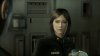
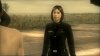
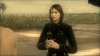
MGS4 Photosnap 27.jpgMGS4 Photosnap 28.jpg

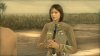
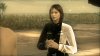
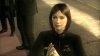
MGS4 Photosnap 29.jpgMGS4 Photosnap 30.jpg

I've taken screenshots from the game Metal Gear Solid 4, and I was wanting to change the color of the girl's shirt into the khaki color of the uniform here shown below without affecting the color of the nametag, tie, or badges on her uniform, and to make the uniform look natural to the rest of the images as well.
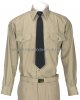
Service Dress Khaki.jpg

Unfortunately, I have had no luck messing with the levels, hue saturation, or channel mixers with photoshop, and the results were mediocre. If anyone can do it for free please let me know, thanks!:cheesygrin:
 
^ Yes right Dataflow!

I observed this in other threads too... The messages are not at all relevant!
 
Replaced colour and a lot of painting and playing i bet?
 
This was actually harder than it looked. Thanks for the challenge, MIGman!!!

Below is a technique I used to change the color on the selected portion, below. Please remember that I did this quickly, just to show you one way it can be done. There are probably as many ways to accomplish this as there are photoshoppers. I tried about 20 different ways to do it before I hit on this, which gave the best results of the lot. I'd rather teach you than to do it for you so that you can't do it yourself if you want the same effect on another picture. If you spend more time on the details than I did, you can get perfect results on any picture you want to use it on.

First, like with everything in Photoshop, note that I made a copy of the original to work on. Several copies actually.

I changed the color on only part of her shirt. I didn't have the time to carefully trace around the entire uniform, but you can certainly do it yourself. Aside from the pen work, there's nothing too complicated about this

With the pen tool, I traced around the parts I wanted to change color and changed the path to a selection. Now I could make my changes on just the part I wanted to change and not affect the rest of the pictures.

With the selection active, my first step was to pull up Curves and messed about until I had lightened the area enough with out losing the shadows and detail. Parts of the shirt were still too dark, but it got me well on my way.

Then I adjusted the brightness until the outer part of the shirt was nearly white, darkening through yellow to a greenish-mud in the middle.

Now I got a hard brush, changed my foreground color to a khaki and the mode to "color" and painted the entire area selected. The darker parts were still too dark of a brown, but the rest of the shirt was a satisfactory khaki color, with light and shadow intact.

Finally, I got out my Dodge tool, softened the brush and reduced the opacity right down to about 17%, and lightened up the areas which were a bit dark. If I was doing this for production I would go back and increase the saturation and/or burn out the edges a bit.

Again, I did this quickly and tried to match the khaki color of the uniform in the attached picture. Your results will be MUCH better, I'm sure, because you'll take your time and actually finish it off well.


MGS4 Test1.jpg
 
when a part of the picture is so dark as the uniform I often choose Image --> Adjustments --> Shadow/Highlight 35%
after that the image was still to dark and I repeated Image --> Adjustments --> Shadow/Highlight 35%

then I made a new layer with color "cab19f" with blending mode "hard light" and opacity 65% with mask for the shirt

and then it was almost completed , I changed it a little bit darker afterwards, here is basic PSD

View attachment uniform.psd
 
Your welcome, Sierraccr! If you would like to work on any of the screenshots that I posted on the thread on your free time, that would be great. Also, if you click on one of them, the screenshot should be bigger so it can be easier to work on any specific parts of the uniform.

As for what I did in photoshop in an other picture I did, I used the magic wand tool with a really low tolerance to select the parts of the uniform, and then I made a new group and added a layer mask to my selection. Next, I added a levels layer in the group to lighten the parts of the uniform on the layer mask, and then I made a new Hue/Saturation layer to add in the color. For Hue I used 44, for Saturation, somewhere between 25 and 30, and for lightness, just 5 or higher.

But for better blending options I made a channel by going to layer > new adjustment layer > channel mixer. Then I changed the adjustment layer to overlay and made the mixer monochrome. From there I adjusted the Red, Blue, and Green, to a point where the selection would look natural to the rest of the image.

Have you tried using channel mixers to set blending options, before?
 
Great Job, Colleague! Although you didn't need to do the pants or belt, but this looks very good. Must've been hard to not include the tie and badges to change with the rest of the uniform. Did you ever use channel mixers to blend in the uniform with the rest of the image?
 

Back
Top