What's new
Photoshop Gurus Forum

Welcome to Photoshop Gurus forum. Register a free account today to become a member! It's completely free. Once signed in, you'll enjoy an ad-free experience and be able to participate on this site by adding your own topics and posts, as well as connect with other members through your own private inbox!

Remove red cast and restore the color


ste

New Member
Messages
4
Likes
0
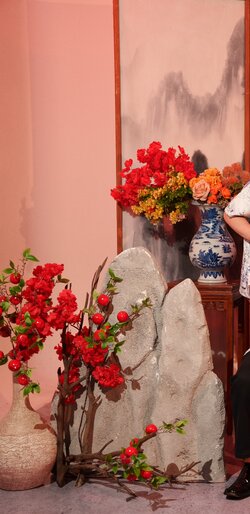
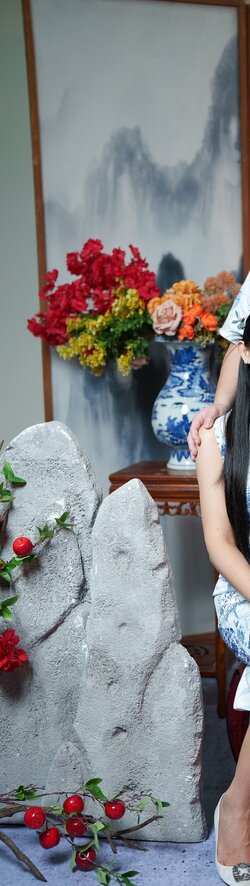
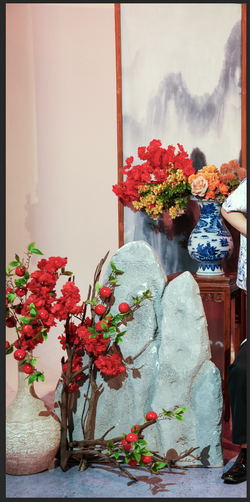
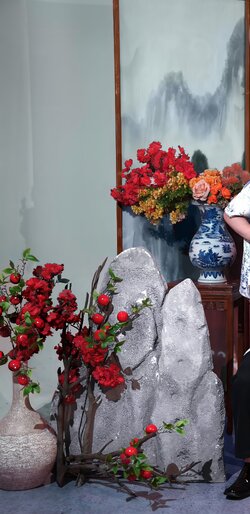
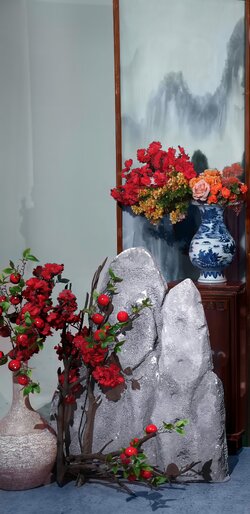
Hi, I have 2 sample pictures taken within the same day. First picture is taken by photographer using red light while the second one is taken without red light.
I am having difficulty in removing the red light so that the first picture can have the same color as the second one. I tried removing the cast, match the color, and even neural filters.

Please help by offering up some suggestions as I am out of ideas!

_LEN7261_`.jpg

_LEN7497_1.jpg
 
Hello and welcome.

Have you tried just using a Camera Raw adjustment?

This is just a 1 minute adjustment which is still a little red, but if I took my time, I think I could adjust it right were I needed it t be.

Screen Shot 2026-02-16 at 1.28.11 PM.png
 
Her's a couple. I corrected the colour casts by making number selections to alpha channelsl,View attachment 153473


Curves with each channel to match your sampleand painted in colour mode over areas missed with the curves adjustments. The other is with the sujects removed via Generative Fill.


View attachment 153475
hi, it works so well. Can you please post your guidance in detail here in this thread so that I can learn? I am actually a novice and my client is not satisfied with the result with red lighting that the photorapher took, and the photorapher is not able to restore the original color so I have to ask for professional guidance instead
 
Can you please post your guidance in detail here in this thread so that I can learn?
Yes, keeping it within the thread is a good idea so that everyone can learn at this time and others in the future.
 
i recently had a bad batch of pics taken under fluro that had a green spike. i used the following suggestion from perplexity to great effect:

Quick steps: Match Color → Neutralize​

  1. Make sure your image is in RGB mode (Image → Mode → RGB Color). Match Color only works there.
  2. (Optional but recommended) Duplicate the Background layer so you can compare before/after.
  3. Go to Image → Adjustments → Match Color….
  4. In the Match Color dialog:
    • Under Source, leave it on None if you’re just fixing a cast in this one image. That tells Photoshop to base the adjustment on the image itself.
    • Check Neutralize. This tells Photoshop to automatically remove overall color cast (it will usually pull your green cast toward neutral).
  5. Use the Luminance and Color Intensity sliders to taste:
    • If it looks a bit flat, increase Color Intensity slightly.
    • If it gets too bright or dark, nudge Luminance.
  6. Toggle Preview on/off to compare, then click OK when you’re happy.

When to use this vs Camera Raw/Curves​

  • Match Color → Neutralize is great for a fast global fix on a JPEG or a single file, especially with an obvious cast.
  • Camera Raw / WB eyedropper or Curves gives you more precise control and is better for batch consistency, especially starting from raw.
 
Hi,
i recently had a bad batch of pics taken under fluro that had a green spike. i used the following suggestion from perplexity to great effect:

Quick steps: Match Color → Neutralize​

  1. Make sure your image is in RGB mode (Image → Mode → RGB Color). Match Color only works there.
  2. (Optional but recommended) Duplicate the Background layer so you can compare before/after.
  3. Go to Image → Adjustments → Match Color….
  4. In the Match Color dialog:
    • Under Source, leave it on None if you’re just fixing a cast in this one image. That tells Photoshop to base the adjustment on the image itself.
    • Check Neutralize. This tells Photoshop to automatically remove overall color cast (it will usually pull your green cast toward neutral).
  5. Use the Luminance and Color Intensity sliders to taste:
    • If it looks a bit flat, increase Color Intensity slightly.
    • If it gets too bright or dark, nudge Luminance.
  6. Toggle Preview on/off to compare, then click OK when you’re happy.

When to use this vs Camera Raw/Curves​

  • Match Color → Neutralize is great for a fast global fix on a JPEG or a single file, especially with an obvious cast.
  • Camera Raw / WB eyedropper or Curves gives you more precise control and is better for batch consistency, especially starting from raw.
Thank you for replying. I tried using the match color and neutralize but it doesn't seem to work for me. The neutralize causes even the flower to lose its color
 
Just a note for everyone, this is the General Ps Board and not the free edit forum. The OP has asked for advice on how to accomplish this task for themselves.

Hopefully Gary will give us a detailed step by step instruction on how he corrected the color cast! Even I would like to hear about that!
 
hi, it works so well. Can you please post your guidance in detail here in this thread so that I can learn? I am actually a novice and my client is not satisfied with the result with red lighting that the photorapher took, and the photorapher is not able to restore the original color so I have to ask for professional guidance instead
Like you, I tried the included filters in PS and Camera Raw and, because of the variety of colour casts, I couldn't get a good match your sample. Instead and probably 'old school', I used the selection brush tool on various individual parts of the photo. i.e. the plants, the rocks in the foreground, etc., finetuned these selections to improve accuracy using Quick Mask Mode and saved each of them to an Alpha Channel labelled accordingly. By Control-Clicking on these saved channels, any/all adjustments will be restrained to these selected areas.
To match the colours, I placed a Colour Sampler on various areas of the 'non-red version' and used curves adjustments to match these RGB values in the alpha channels of the 'red version'. Touch up to areas missed or overlapped was done by selecting the proper colour and painting on a new layer in colour mode.
Again and because of the saved channels, I could improve saturation, contrast, etc individually and when these selections were inverted, do the same with with the surrounding backgrounds.

I apologize for the probable brief and hopefully not too confusing details. Definetly not from a professional rather an 'experienced' PS user.

Give them a try andIf I can assist further, please ask.

Cheers

 

Back
Top