Going out on a limb here; well kind of. I just wanted to say that. I assume you have some knowledge of Photoshop. I have created some steps for you to use. They are quite simple and will work in
any version of PS. Your photo will still look a bit photoshopped but I think you'll be pleased with the results. Sure there are more sophisticated methods you could use but you want to be able to actually do this given your skill level. Right?
Here's a screen capture of what I did and the steps are numbered. I'll explain in the area following the image.
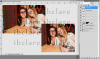
1) Take the polygonal lasso tool and make a selection roughly like the one I have outlined in red. It goes down to the top of his head. Copy that to a new layer. Now change to the move tool (V), hold down the alt/opt key and move the section down. Continue to do this till you get to the edge of the table (actually, after you have a few done, you can merge them then move the section down till you're done).
Most likely, you'll want to paint or clone or smudge this area, as this method is not too subtle regarding the seams of the clone section, but that's up to you. I didn't do it and I didn't make the table edge very smooth either, but you should.
Or, you could just paint this section in which is actually a lot easier if you don't mind the flat background. If you want to do this, make a careful linear selection around the edges of the table using the lasso tool, then a rough selection around the rest of the "guy area," then to the top and left side edges. Fill it with a medium brown color which you can fill with a gradient or paint with a gradient method later.
2) If this part is hard to understand or do, just use the clone tool, stamp (S), and some paintbrush (B) to fill in.
When you get down to the table corner, you have a section of him left. Use the lasso (L) again and outline the shape that's left and make a polygon around the corner of the table. This is the remaining image of the guy and you want to fill it with similar colors like you've been creating.
Now go to select>transform selection. Now you can move the selection without moving pixels. Position the selection over the background above his head so you don't get any of the blue of him, then hit ctl/cmd + J to copy to a new layer. Now with the move tool you can reposition it over the guy at the table's edge.
3) Clone sections of her hair. It took me two stamps, one above and one below, but whatever works for you.
4) Paint in the rest of the background (that was my method anyway). I make a gradient with the brush by picking up one color that's dark at the top (used a brown), a lighter color at the bottom (used the goldish color) a medium in between, then just used the brush at lower opacities to blend the edges roughly.
Finally crop the picture. You don't have to but that will be the most realistic and give you less area to fudge.
Let us know how you're doing. Don't get discouraged, this isn't easy for a beginner because there are little nuances to understand. Ask questions. I imagine there will be some areas, no matter how well I think I explained something, that will be like a foreign language.
And show us your results or your efforts. :mrgreen: