What's new
Photoshop Gurus Forum

Welcome to Photoshop Gurus forum. Register a free account today to become a member! It's completely free. Once signed in, you'll enjoy an ad-free experience and be able to participate on this site by adding your own topics and posts, as well as connect with other members through your own private inbox!

Setting Color Space Default


Rich54

Guru
Guru
Messages
2,022
Likes
3,883
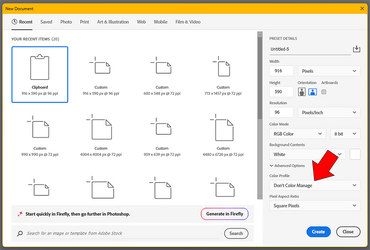
In Photoshop CC, if I copy an image and paste it into a new file from the clipboard, the File>New window defaults to a color profile of "Don't Color Manage" (see red arrow, below). I'm trying to find the setting to control this. I would prefer to have the default color profile be sRGB, but I don't see anything in Edit>Preferences that addresses this.

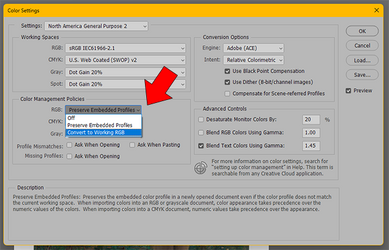
I found some controls in Edit>Color Settings (see second image, below). It's currently set to "Preserve Embedded Profiles". If I change that to "Convert to Working RGB", will that do what I want, or are there unintended consequences that I'm not aware of?

Thanks.
Rich


1794536502842.png

1794536762024.png
 
Hi @Rich54
In the New Document window, when you select something other than Don't Color Manage, it should remember that last setting.
Not 100% sure that sticks yet give that a try
John Wheeler
 
Hi John,
Once I realized this was happening, I've tried to remember each time to set the profile to sRGB while in the New Document window. But it doesn't stick—it keeps reverting back to Don't Color Manage.

Does this also happen with you? If you copy a random image from the internet and paste it into a new PS file, do you get the same default setting of Do Not Manage?
 
HI @Rich54
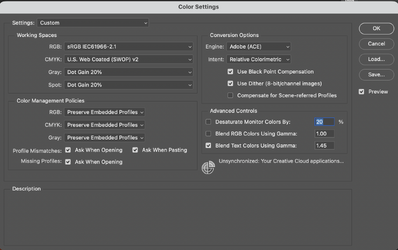
I probably do not understand all the nuances of the "New Document" panel and its defaults. So before that, let me show you what I have in Color Settings that keeps me out of trouble (well Photoshop trouble :rolleyes:), Here are my settings:


Screenshot 2026-11-13 at 8.14.31 AM.png

In particular, note all the Color Management policy settings, including the checkboxes. With these settings, as long as the image has an embedded ICC profile, it will keep that as you open files. In the case of pasting files, you get flagged if it has any other ICC profile (or lack of profile) that does not match the working space (which, for mine, is set for sRGB).

So when I copy a screenshot on my Mac, it attaches the display profile along with the image in the clipboard, so when I try and paste it I get this warning and option box:
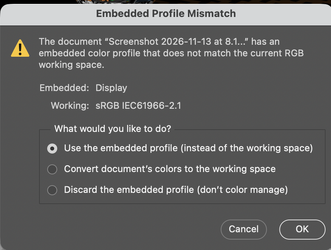
Screenshot 2026-11-13 at 8.15.41 AM.png

where it gives me choices on how I want to handle the mismatch. This way, I don't have to understand the nuances of the PS process; it will flag me if something does not match.

If you have an existing file available, the preferred method is to use "Open" instead of the "New" command.

So in your case (which I think I initially misread), it depends on how you got the file into the clipboard (and this may be OS dependent too).
Are you clipping a screenshot? Im my Mac it will assign the display profile (not sure about Windows systems)
If you are right clicking an image and copying on the internet, it may or may not have an assigned profile. Some have embedded profiles and others do not. e.g. some photo sharing sites strip the color profile so those would come in as not being color managed while others will come in either with however the file was saved and sometimes websites default to converting to sRGB for "better" compatibility with all viewing software. So its a mixed bag

The one time that I do use the New Document panel from the clipboard is because I do not know the exact pixel dimensions and the default size comes up with what is in my clipboard. so setting up a new document, it opens up with the background selected.

II will try some things out and see how it works with my version of OS and make another post.
John Wheeler

 
Hii @Rich54

I did a few experiments about the "New Document" panel on my Mac and PS 2025.
All of the "recent items" settings not only store the pixel dimensions but also the color space that you chose or the color space in the clipboard. If you move through the "recent items" in that panel, the color space setting will change to the one used with that preset. Then I believe you can manually change it to a different color space with the settings on the side. So I would not call that setting a default.

When I copy an image from the Mac Finder with various color spaces, they all will reflect that color space in the New Document settings with one exception.
If this image has no embedded ICC profile and you copy it to the clipboard, the "New Document" setting changes to sRGB. I double-checked, and it was not using the working space for RGB in the Color Settings panel. I assume Adobe made the decision to default to sRGB when there was no embedded profile in the clipboard (Go Figure)

That's what I found through experimentation.

So bottom line, that setting is not a default setting that sticks

There may be a workaround if you specify exactly what you want to happen.

John Wheeler
 
Thanks, John. When I find an image on the internet that I want to bring into PS, I usually right-click and copy it to the clipboard (and occasionally I'll use the Windows snipping tool). Then, in PS, the File>New Document command will automatically set the exact pixel dimensions, which is my main reason for using File>New Document each time. But as we've discovered, PS has no setting to force sRGB as my default new document. Oh, well... not the end of the world.
 
Never Give Up, Never Surrender
Hi @Rich54

I think I have a workaround that seems to work for me.
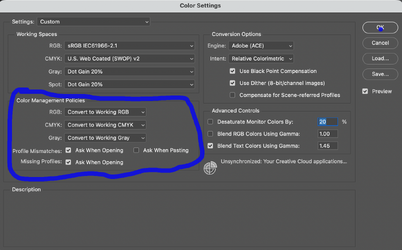
First change you color settings as shown below that force a conversion to sRGB if there is a mismatch to the base color profile.:

Screenshot 2026-11-13 at 8.39.15 PM.png

To avoid being asked if you want a conversion, uncheck the one box "Ask When Pasting"

Now the trick that is also needed is a short Action that you do 1) File > New to open the New Document panel and then 2) Change the document profile dropdown to sRGB
Save that action and assign a shortcut key if you want

Now, you copy the image that you want to bring into PS, then run the Action, as that will force the document to open with sRGB and create that document to the right size and with sRGB color space

And then you paste the image. If there is any mismatch compared to sRGB, it will be converted to sRGB, and if there was no profile, it will be assigned to sRGB

The issue was how to create the document so that the base unpasted document started in sRGB.

Seemed to work for me. Give it a try
John Wheeler
and then you pas
 

Back
Top