What's new
Photoshop Gurus Forum

Welcome to Photoshop Gurus forum. Register a free account today to become a member! It's completely free. Once signed in, you'll enjoy an ad-free experience and be able to participate on this site by adding your own topics and posts, as well as connect with other members through your own private inbox!

Smart Object with auto resizing


Alexandria

Well-Known Member
Messages
126
Likes
9
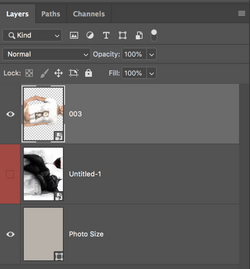
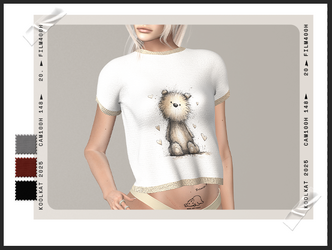
I am trying to make this smart object, the size MUST be 700 x 525px (PSD attached)

003.png

The images that must fit in this image are all 2100 x 1575px (see attached), this size is exactly 3 times the above image. When I click on the smart object, it opens at a size of 999 x 1358px (in the PSD) and vertical instead of horizontal.

How can I do this so that when I "place embedded" (below image) and click save, it resizes auto to 700 x 525px)?

MP Ad 700 x 525px.png
 
No PSD file. Maybe that will explain what you're asking!!! Otherwise, I'm lost as to what you are trying to do!
 
There's nothing wrong with the mockup or the smart object used in the mockup. Don't worry about the sizes or rotation, they don't really matter.

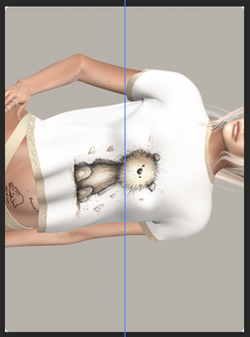
Open the PSB by double clicking the smart object layers thumbnail. Then add the "girl image" to the PSB file (drag and drop or "place embedded"), rotate it and resize to fit. Turn off the "cat with wine image". Then hit save. (NOTE: I don't know why the creator of the mock up left the PSB image rotated, but I know the mistake they made to cause it to be rotated. It can't be fixed EASILY now but it doesn't really matter as long as it's upright in the mockup.)

Screen Shot 2026-03-09 at 6.39.22 PM.png Screen Shot 2026-03-09 at 6.39.33 PM.png

The finished size after updating the smart object/PSB in the mockup will be the same as when it started, 700px x 525px regardless of the size of the image or the canvas within the PSB file.

Is this what you're trying to accomplish as the final outcome???

Screen Shot 2026-03-09 at 6.36.48 PM.png
 
So just to give you some understanding of how a mockup works, I will try to explain how the image size in the PSB file does not matter.

Here I have a PSD document with a 700px x 500px canvas.
I have given it a grey background.
Screen Shot 2026-03-09 at 7.31.11 PM.png

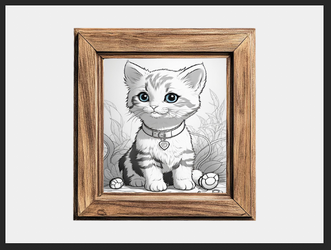
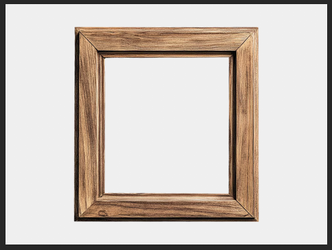
Here I have a wooden frame that I want my subject to be in for the mockup.
Screen Shot 2026-03-09 at 7.41.00 PM.png

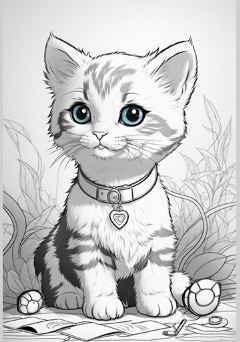
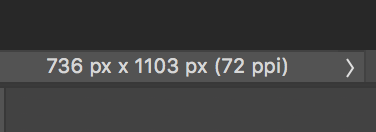
Here's a Kitty image which is 736px x 1103px,I want in the frame. So it's a bit bigger than my entire mockup.
Screen Shot 2026-03-09 at 7.30.19 PM.png
Here's how it looks at full size.
Screen Shot 2026-03-09 at 7.41.49 PM.png

So, I convert the Kitty image layer into a smart object.
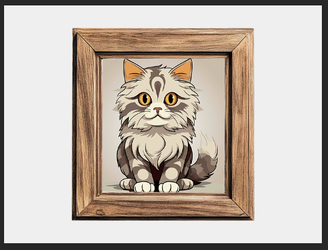
Then, using Free Transform, I resize the Kitty image in the mockup PSD...........which is the actual smart object layer, to fit in the frame.
(NOTE: I had to stretch the image side to side a little to cover the BG of the frame.)

Note that the Kitty image is much smaller than the overall 700px x 500px size of the canvas/mockup PSD file.
Screen Shot 2026-03-09 at 7.49.47 PM.png

Now, lets double click the smart object layers thumbnail in the PSD file to take a look at the PSB file................
The Kitty image in the PSB file is still its original size!!
Screen Shot 2026-03-09 at 7.53.55 PM.png

So the size of the image in the PSB file does not matter to the PSD mockup file.

In my mockup, I can change the image in the frame by double clicking the smart object thumbnail in my PSD file, and adding the new Cat image to my PSB file, then saving.
Screen Shot 2026-03-09 at 8.14.21 PM.png
 
I am far from an expert on how to place images as was requested yet there is an approach where you can bring images in and have them autosize to fit in a specified area.
This approach may not solve all the issues one may have yet I thought it was worth describing how to do it.

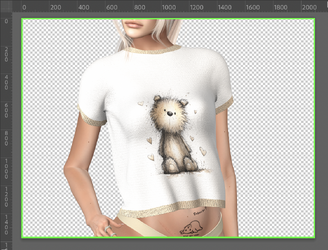
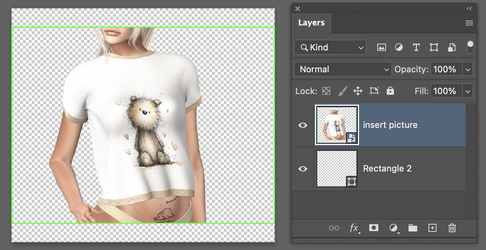
To make it better to understand, I am taking the image to be inserted, bounded by a green rectangle as shown below. That will help show that the the resizing is the the full size of the inserted image:

Screenshot 2026-03-10 at 4.26.29 PM.png

I am going to show this image inserted into four rectangle areas that all have different apsect ratios.

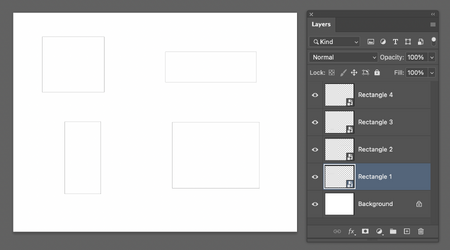
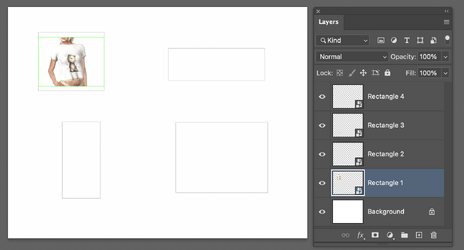
I had a background Layer of pure white. I used the rectangle shape tool set to "shape", no fill, and just 1 pixel black border so the position could be seen. Each time you create a shape rectangle, it creates a new Layer one for each rectangle draw 1 though 4. Here is what the image looks like with the Layer Panel:

Screenshot 2026-03-10 at 4.29.21 PM.png

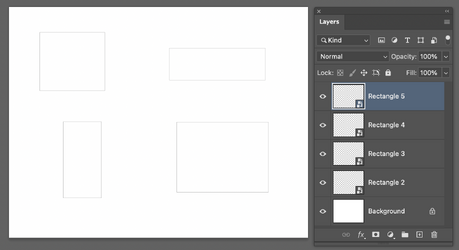
Then, I converted each of those four Shape Layers into a Smart Object and here is what that looks like with the Layer panel:

Screenshot 2026-03-10 at 4.49.00 PM.png

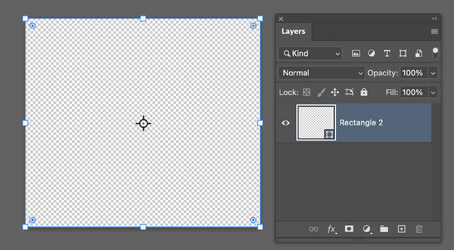
Now I double click on the Layer Thumbnail for Rectangle 1 and it opens it as a PSB file:

Screenshot 2026-03-10 at 4.30.34 PM.png

Now I use File > Place Embedded the image we want autosize to the rectanle. Note the the image boundaries exactly fit inside the image.

Screenshot 2026-03-10 at 4.33.28 PM.png

One than accepts this insertion, and Save this PSB file (and it can be closed after that), and go back to the starting document, and as you can see, it fits exactly autosized into the Rectangle 1 Smart Object Layer:

Screenshot 2026-03-10 at 4.33.57 PM.png


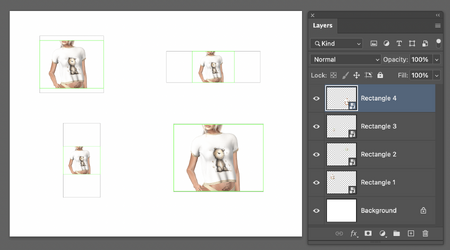
I repeat the steps for Smart Object Layers Rectangle 2 to Recttangle 4. Note that with this approach the embedded image is "Fit Inside" the Rectangle area. When the aspect ratio of the rectable matches or is close to the same aspect ratio of the embedded image, the it fills the whole rectanlge as in Rectangle 4 in the lower right corner:

Screenshot 2026-03-10 at 4.35.48 PM.png

To see the details of the above images, just click on the associated image.

Hope this is helpful, even if it is not the full answer.
John Wheeler
 
I am far from an expert on how to place images as was requested yet there is an approach where you can bring images in and have them autosize to fit in a specified area.
You are an expert as far as I'm concerned! Don't sell yourself short! And I agree that the way you describe is the way I would create the mockup if I were starting from scratch. It's a method that I've described many times here on the forum.

Relating to Alexandria's posted mockup, I felt it better to show how the "resizing" occurred in that example and that the size of the original image in the PSB file had no bearing on the size in the PSD mockup, because the smart object layer would resize the image to fit in that mockup, just like your example.

I used the rectangle shape tool set to "shape", no fill, and just 1 pixel black border so the position could be seen.
Just a note for future reference, it doesn't matter what color the rectangle is or what the fill percentage is, it will still fill with the image you added via "place embedded" in the PSB file.

Here's the question! How did I arrive at how and why I think that the sample mockup was created by turning an image into a smart object rather than creating a "rectangle", converting it to a smart object, and then using "place embedded" to place the imae in the PSB file? It was because the image in the PSB file was turned sideways. This tells me that the original creator placed the image in the mockup sideways, converted it into a smart object, then rotated and resized it to fit.

For example, this is the original Kitty image opened in the PSD file.
It is turned sidways...............for whatever reason.......who knows?
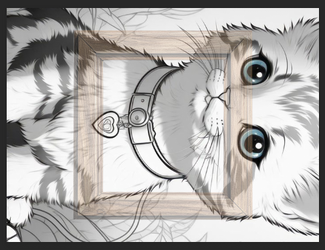
Screen Shot 2026-03-10 at 7.12.58 PM.png

I then convert the Kitty layer into a smart object.
I rotate and resize it to fit into the mockup frame in the PSD file.
Screen Shot 2026-03-10 at 7.14.22 PM.png

Now, lets double click the smart object layers thumbnail in the PSD file to take a look at the PSB file................
The kitty is in it's original size and orientation, which is sideways, the way it started out.
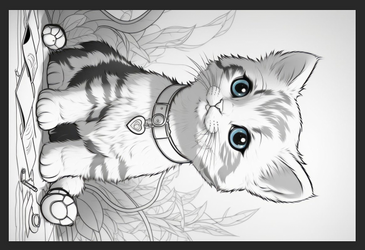
Screen Shot 2026-03-10 at 7.14.58 PM.png

So we have both shown how the smart object layer will auto-resize any image you add to it's PSB file.
 

Back
Top