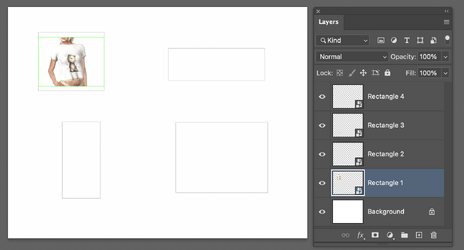
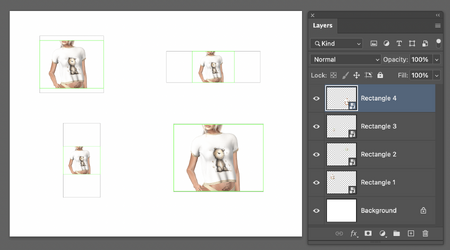
I am far from an expert on how to place images as was requested yet there is an approach where you can bring images in and have them autosize to fit in a specified area.
You are an expert as far as I'm concerned! Don't sell yourself short! And I agree that the way you describe is the way I would create the mockup if I were starting from scratch. It's a method that I've described many times here on the forum.
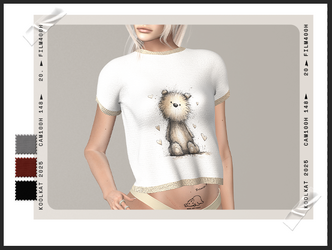
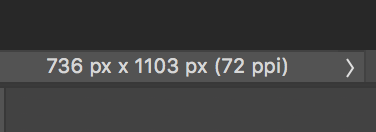
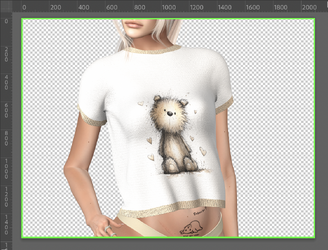
Relating to Alexandria's posted mockup, I felt it better to show how the "resizing" occurred in that example and that the size of the original image in the PS
B file had no bearing on the size in the PS
D mockup, because the smart object layer would resize the image to fit in that mockup, just like your example.
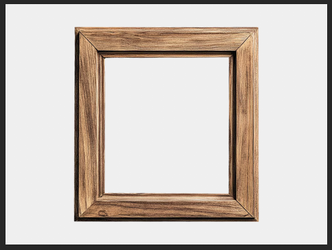
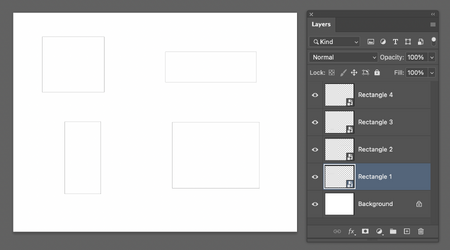
I used the rectangle shape tool set to "shape", no fill, and just 1 pixel black border so the position could be seen.
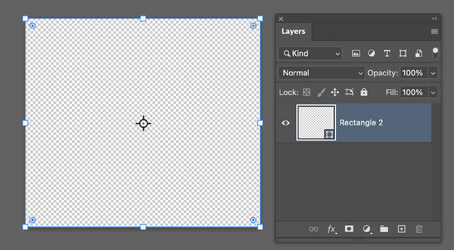
Just a note for future reference, it doesn't matter what color the rectangle is or what the fill percentage is, it will still fill with the image you added via "place embedded" in the PS
B file.
Here's the question! How did I arrive at how and why I think that the sample mockup was created by turning an image into a smart object rather than creating a "rectangle", converting it to a smart object, and then using "place embedded" to place the imae in the PS
B file? It was because the image in the PS
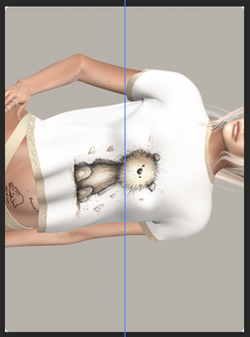
B file was turned sideways. This tells me that the original creator placed the image in the mockup sideways, converted it into a smart object, then rotated and resized it to fit.
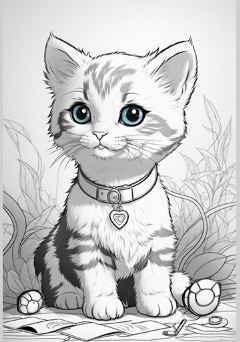
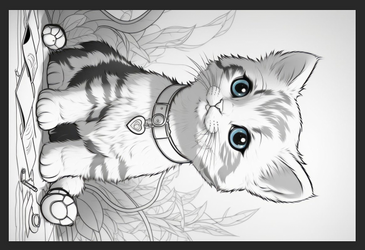
For example, this is the original Kitty image opened in the PS
D file.
It is turned sidways...............for whatever reason.......who knows?
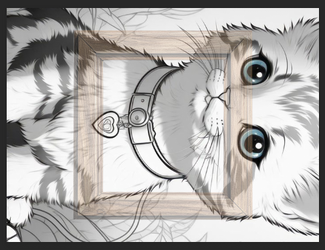
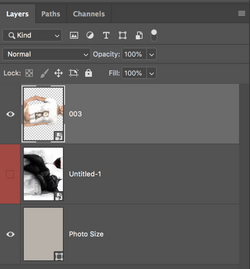
I then convert the Kitty layer into a smart object.
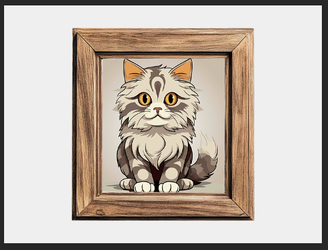
I rotate and resize it to fit into the mockup frame in the PS
D file.
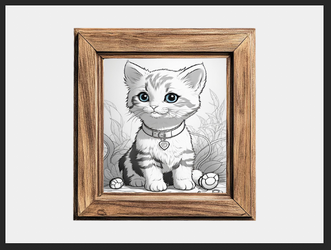
Now, lets double click the smart object layers thumbnail in the PS
D file to take a look at the PS
B file................
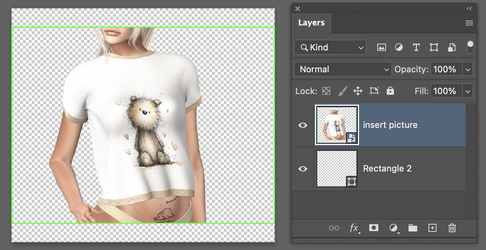
The kitty is in it's original size and orientation, which is sideways, the way it started out.
So we have both shown how the smart object layer will
auto-resize any image you add to it's PS
B file.