What's new
Photoshop Gurus Forum

Welcome to Photoshop Gurus forum. Register a free account today to become a member! It's completely free. Once signed in, you'll enjoy an ad-free experience and be able to participate on this site by adding your own topics and posts, as well as connect with other members through your own private inbox!

tips on doing the effects (as attached pic)


d_animality

Well-Known Member
Messages
83
Likes
6
Hello... it has been a while and im getting the hang of photoshop now.. been trying lots of stuff but im still newbies in everything...

so here is my another problem.. i want to photoshoot my friend's muscular and i want to do the effect as the attached pic here... well... dont mind about the black background cause i know that already...

what i want to know is how to make such effects as his? i mean the body color... the texture of the body like its smooth and i can even see some veins.. thats all i want to know.. i really hope i can get some guide again as last time cause its really helping me out through everything...

thank you in advance :DSTEVE_L_SIDE.jpg (btw i got this pic from google, so credit to the owner:))
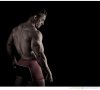
 
If you like this body color (sorry I find it weird, ghoulish, too much green in it but that's my point of view, don't need to share) so open this photo and the photo you want to work on and go to match color/ source this photo not the photo you want to modify and adjust contrast and luminosity. That's the fastest way otherwise you needa work on levels and selective colors but you needa be experimented.
About details and especially veins, take a good shot! lol Seriously, you can work on smart sharpen or the high pass technique or the custom filter too but you'll get halos or noise with every technique, to get rid of that: work on different layers and masks with blending modes as soft light and blur edges that have ugly halos or just mask them. If you don't have veins enough, clone them from another photo but you needa be advanced in using brushes and blending modes, use a special layer to do it so you can redo it if any problem. If you want more muscles, create a layer with free transform or work on liquify. I don't know if you uinderstood me well cuz I'm French, anyway good luck!
 
okay i get it about the lighting.. how about to make that body tone at least? its like monochrome but more into dark brownish
 
If you like this body color (sorry I find it weird, ghoulish, too much green in it but that's my point of view, don't need to share) so open this photo and the photo you want to work on and go to match color/ source this photo not the photo you want to modify and adjust contrast and luminosity. That's the fastest way otherwise you needa work on levels and selective colors but you needa be experimented.
About details and especially veins, take a good shot! lol Seriously, you can work on smart sharpen or the high pass technique or the custom filter too but you'll get halos or noise with every technique, to get rid of that: work on different layers and masks with blending modes as soft light and blur edges that have ugly halos or just mask them. If you don't have veins enough, clone them from another photo but you needa be advanced in using brushes and blending modes, use a special layer to do it so you can redo it if any problem. If you want more muscles, create a layer with free transform or work on liquify. I don't know if you uinderstood me well cuz I'm French, anyway good luck!

no worries.. thanks for the tips.. i got your points ... but as more the matching color... i always get unsatisfied results by using it... so id prefer to do it by adjusting the color and etc... if you can point me to get to that color :D
 
ok, another way to do it is to pick the color you want on the skin (alt in brush mode or eyedropper) and to open a new layer, fill it with this color, blending mode color, add a mask, adjust opacity and work on the mask with a soft brush (black at low opacity) to lighten where it's needed.
If you don't manage so well selective colors, just work on the grey channel in absolute mode, it's easy and may be you can reach something close to what you want?
Last tip: it seems this skin is not saturated, much more like a black and white with a color, so open a black&white layer, the image is now black and white but if you check the hue case, I don't know if it's this name in English I got a French version, it's at the top left and you can choose a color, put the color you picked on the original skin and adjust the cursors below.
Again... good luck!
 
as stated it is mainly the photography lighting here but tweaked in photoshop you can probably do it with 2 adjstment layers 1st 1 being a black and white adjustment layer set the layer blending mode to luminosity if you dont do this then it will just turn the image to black and white and primarily adjust the red channel sliders this should give the tonal contrast.

and then colour change it with a vibrance adjustment layer and decrease it slightly
[UNSET].png
Here is the PSD I used for this
View attachment [UNSET].psd
 
Le Claire - Thanks for the tips..

Hoogle - Thanks again thats more like it...!! ill see your psd and learn from it... (will come back if i dont get the result :D)

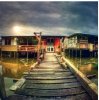
btw i found this photo from instagram... (attached)

i know its using special lenses to take that photyo.. what im concerning about is how to make the shining effect on the photo... i mean its highlighting the color and so on.. it looks nice and cheerful...


EDIT: Just Tried your method Hoogle and it works wonderful!!Thanks... first i forgot to change the blending mode to luminousity and it only black and white and then i read again your post and now it works!! :D yay!!
Thanks again...
 

Attachments

  • original.jpg
    original.jpg
    57.3 KB · Views: 17
Last edited:

Back
Top