
What's new
Photoshop Gurus Forum

Welcome to Photoshop Gurus forum. Register a free account today to become a member! It's completely free. Once signed in, you'll enjoy an ad-free experience and be able to participate on this site by adding your own topics and posts, as well as connect with other members through your own private inbox!

Need More Help from Hawkeye


Nana

Active Member
Messages
34
Likes
3
In my previous post about scanning very old pen and ink drawings and then moving them into a much smaller new page, Hawkeye came to my rescue and I've been able to complete about 50+ of these pages for publication. Thank you, Hawkeye, a zillion times over. I have hit a slight snag, though, and could use some help. I am actually taking scans of 3 different pages and then clipping and moving pieces from each page to the new page. My issue is that one of the originals is a lot darker than the other two and this makes each "piece" from that page look much darker than the others on the new page. I've attempted to lighten things up on the scanner but that hasn't done much good. Is there a way, after scanning, that I could make EACH page of drawings have the same levels of black and white so when I move them over to the new page, they would all have the same coloration. All of this work is being done in gray scale. I already use the Levels to make sure the background of each page is the same but not sure if Levels is where I'll find my answer to the difference in the black tones on each drawing. I'm attaching a copy of the page I'm talking about. Any help would be so much appreciated. Thank you!
Nan
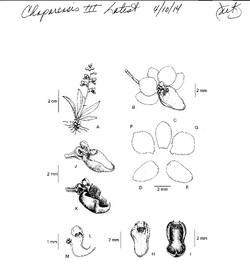
Scan 141020000.png

View attachment Scan 141020000.pdf
 
Try Image-Adjustments-Threshold. Set it at the mid point (128). That should set all the blacks and whites to 0 and 255. Open the Info panel and use the eye dropper to check them.
 
:cheesygrin: Thanks Mike and Hawkeye! I'll try this out on Monday, when I return to my volunteer job. I'll let you both know if it works. Thank you, again.
Nana
 
Sorry it took me so long to get back to you guys and gals but my boss put me on another project for awhile and now I am back to the original one, using pen and ink, black and white drawings of orchids and their parts. I tried making the adjustments as suggested (using Threshold and Levels and also Brightness and Contrast) and I still cannot get these drawings to lighten up. After lots of aggravation with this yesterday, I began wondering if I might be able to solve this issue during the actual scanning process. Currently, I scan using 16-bit grayscale at 1200 resolution. The latest originals I've been given are very intense and when I run a photocopy of these scans, they come out very dark on the black areas, so much so that they lose their distinctive qualities. The boss is concerned, and reasonably so, that when the publisher reduces our drawings to fit the page format for that particular publication, the reduction will obscure the distinctive qualities of the small flowers in particular. I am attaching 2 samples. I am wondering if there is any adjustments I can do to the actual scanning process that would lighten up my original scans to begin with so I won't have to be making tons of adjustments while working with them in the new pages. Any ideas?

Thank you, Nana

View attachment Grandeflora Scan.pdfView attachment Grandeflora Scan.pdf
 
:lol: Of course, I'll accept help from almost any one of you PS helpers, too! I need some direction before hitting the scanner again tomorrow. :rolleyes:

Nana
 
What format are you scanning to Bit map,jpeg??

You might run a noise filter after scanning
 
Hi, Mike! Scanning directly to PS and then immediately saving as PS and JPG. I am not sure which direction to go to change the scanner settings so it will scan these Pen and ink drawings less intensely. Currently using 16-bit grayscale at 1200 resolution. We are afraid that if we leave them as they are right now, when the publisher reduces them to the size needed by the publication they are going into, it will make these beautiful drawings be reduced to nothing but ink blobs. Any ideas other than noise filtering?
 
Nana,
Hate to say this, but if your really concerned about the quality, why on earth are you saving them as JPG's? Your going to print with these and that is a lossy format. Everytime it is opened and resaved as a JPG your losing quality in your image. Save to Tiff with LZW compression.
Hi, Mike! Scanning directly to PS and then immediately saving as PS and JPG. I am not sure which direction to go to change the scanner settings so it will scan these Pen and ink drawings less intensely. Currently using 16-bit grayscale at 1200 resolution. We are afraid that if we leave them as they are right now, when the publisher reduces them to the size needed by the publication they are going into, it will make these beautiful drawings be reduced to nothing but ink blobs. Any ideas other than noise filtering?
 
Hi, Larry! The ONLY reason to save these drawings in JPG is so that my boss is able to open them when he's at home and he doesn't have PS on his home computer. He doesn't DO anything with them when he opens them. He merely will look them over and make notes about what he wants me to do with them next. Since I work with them strictly in PS, I've been instructed to save them in PS. This is volunteer work that I'm doing and back in October, when I started this work, I had NO knowledge whatsoever about PS. I happen to be a Mac-Addict for life and have only worked in iPhoto prior to this. Thank you for the suggestion!

Nana
 
Ahhh..OK..so your JPG is not your working file. Yes, PS format is fine and I assume your print bureau is having you save in PS.
If your printer REDUCES the file size that's not going to cause a loss in the quality of your printing. If they are a professional printer, they will know what to do. Suggest you communicate with them on this issue.
 

Back
Top