
Photoshop Gurus Forum
Welcome to Photoshop Gurus forum. Register a free account today to become a member! It's completely free. Once signed in, you'll enjoy an ad-free experience and be able to participate on this site by adding your own topics and posts, as well as connect with other members through your own private inbox!
You are using an out of date browser. It may not display this or other websites correctly.
You should upgrade or use an alternative browser.
You should upgrade or use an alternative browser.
Post Pic Ridiculously Realistic Scorching Fire Effect!
- Thread starter lookatthisguy
- Start date
lookatthisguy
Active Member
- Messages
- 26
- Likes
- 2
Ok, highlight your K layer and erase the top of the k.
OK, I did that. I'd like to skip to the part where we overlay the real flame onto the letter.
Is the blue box around the layer normal? I don't remember it being there before...
Anyway.. so it looks like this...

lookatthisguy
Active Member
- Messages
- 26
- Likes
- 2
It just outlines the layer when I select it. It goes away after I select something else...No, there should not be a blue box there.
View > Show > Layer Edges. I fixed it. No more blue box around the layers...
Last edited:
lookatthisguy
Active Member
- Messages
- 26
- Likes
- 2
Now my question is how do I get that flame to come over...
I fixed it already...
View > Show > Layer Edges. I fixed it. No more blue box around the layers...
I fixed it already...
View > Show > Layer Edges. I fixed it. No more blue box around the layers...
lookatthisguy
Active Member
- Messages
- 26
- Likes
- 2
Ok, select the layer with the blue box, go to VIEW > SHOW > LAYER EDGES, uncheck layer edges.
Yes, I found the fix before you looks like...
lookatthisguy
Active Member
- Messages
- 26
- Likes
- 2
I'm stuck on the part when you bring the real flame overlay over. I saved the image from that website. I opened it with PS. But how do I bring it over? I hit CTRL + Left Click on the Green Channel. It turns grey then I get a bunch of outlines around the lettering. Then what?
lookatthisguy
Active Member
- Messages
- 26
- Likes
- 2
Use the Move tool to drag the flame selection from the real flame document over to the flame text document.
Did that and I got a green flame. Tried it again and I got a white flame... How do I get an orange flame?
lookatthisguy
Active Member
- Messages
- 26
- Likes
- 2
Did that and I got a green flame. Tried it again and I got a white flame... How do I get an orange flame?
^^^

Doesn't look good
^^^
Doesn't look good

- Messages
- 24,260
- Likes
- 13,720
In the real flame document (this should be a new document), go to the Channels Panel and Hold down the command key and mouse click the green layers thumbnail to make a selection.
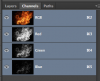
Go back to the layers panel.....

Choose the Move Tool, then click and drag from within the marching ant selection and drag the selection to the tab of the TEXT document we have been working on! When the TEXT document opens, release the mouse. Reposition the newly moved Real Flame layer above the the letter layer you desire.
Go back to the layers panel.....
Choose the Move Tool, then click and drag from within the marching ant selection and drag the selection to the tab of the TEXT document we have been working on! When the TEXT document opens, release the mouse. Reposition the newly moved Real Flame layer above the the letter layer you desire.
Last edited:
- Messages
- 24,260
- Likes
- 13,720
After you have moved the flame, use command +J to copy the layer several times and turn all but one off. Move one at a time above the letter layers. Use Command + T to transform and rotate the letters into position.
lookatthisguy
Active Member
- Messages
- 26
- Likes
- 2
All right.
So. The instructions say CTRL + Left Click the flame on Green Channel to select the with the ant trail highlighter...
Looks like this:
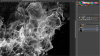
You're saying not to hit CTRL? Just select the green
OMG, learning PS over a forum like this is so difficult. I seriously need an instructor behind my shoulder. Thank you for you patience so far...
So. The instructions say CTRL + Left Click the flame on Green Channel to select the with the ant trail highlighter...
Looks like this:
You're saying not to hit CTRL? Just select the green
OMG, learning PS over a forum like this is so difficult. I seriously need an instructor behind my shoulder. Thank you for you patience so far...
- Messages
- 24,260
- Likes
- 13,720
Ok, go back and read post #55.
Do not click on the green layer itself so that it looks like this.....

Only hold command/control and left click on the green layers thumbnail.......should look like this when your clicking!

Do not click on the green layer itself so that it looks like this.....
Only hold command/control and left click on the green layers thumbnail.......should look like this when your clicking!