What's new
Photoshop Gurus Forum

Welcome to Photoshop Gurus forum. Register a free account today to become a member! It's completely free. Once signed in, you'll enjoy an ad-free experience and be able to participate on this site by adding your own topics and posts, as well as connect with other members through your own private inbox!

How do I achieve this effect?


Kamikaze

Member
Messages
17
Likes
0
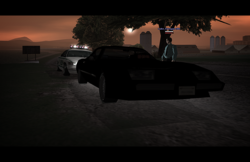
I'm currently playing San Andreas online and I have come across this decent effect that is created using Photoshop. The author of the screenshots (the guy making the effect) is refusing to give up the goods as to how he is creating such a dramatic, shadowed & dark effect so I thought it would be best to ask around on here to see what answers I could get.

You can view the screenshots with the effect here:

http://images.mafiacrime.org/g/496513.png
http://images.mafiacrime.org/g/687012.png
http://images.mafiacrime.org/g/294911.png
http://images.mafiacrime.org/g/843610.png
http://images.mafiacrime.org/g/74098.png
http://images.mafiacrime.org/g/31824.png

Good luck and thank you!
 
It's all vector images. There's no need for effects but defined colors.
For photo making to something like that first what cames in mind is do two things first:
1. Make whole image darker (curves or levels)
2. Use gradient map.

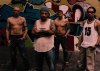
So this one:
gang20members.jpg


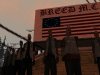
Turns into this quickly:
darker.jpg

For gradient map used dark #21241f, light #af7472 (but it's all on sight).
 
It's all vector images. There's no need for effects but defined colors.
For photo making to something like that first what cames in mind is do two things first:
1. Make whole image darker (curves or levels)
2. Use gradient map.

So this one:
gang20members.jpg


Turns into this quickly:
View attachment 7890

For gradient map used dark #21241f, light #af7472 (but it's all on sight).
Thank you for your comment. I have tried playing with both levels & curves but I didn't add in a gradient map which was foolish of me, I don't know why I didn't think of it! I'll have a go now and I'll post my results shortly. Thank you again SeniorS.
 
Welcomen!

And i agree with Steve.Those have only one thing common with PS. They are pasted and saved by photoshop.
 
Welcomen!

And i agree with Steve.Those have only one thing common with PS. They are pasted and saved by photoshop.
Who is Steve? Forgive my ignorance but I applied the lighter color (#af7472) and it appears to be a pink color which isn't giving me the desired effect. Do you have anymore ideas as to how I can achieve the above?
 
Who is Steve?
Reread your own thread :)
Forgive my ignorance but I applied the lighter color (#af7472) and it appears to be a pink color which isn't giving me the desired effect. Do you have anymore ideas as to how I can achieve the above?

Ups, i forgot to say that need to change blending mode for gradient to Hard Light.
 
You're saying these are photographs that were Photoshoped?
These are screen captures of the game.
Apologies for my double post but your post failed to show up the first time round. I know they are screen captures of the game but they are screen captures that have then been edited in Photoshop to obtain the effect shown. Please click this link (http://img51.imageshack.us/img51/7829/samp241e.png) to view a screen capture from the game before it is edited and please be warned the image at the end of the link is 1260x960 and therefore it may stretch your screen.
 
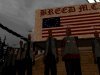
So with same thing what i've writen it will look that:
darker2.jpg

Just need to find right gradient and white (and total image) darkness.
 
So with same thing what i've writen it will look that:
View attachment 7897

Just need to find right gradient and white (and total image) darkness.
I appreciate your assistance but I'm simply not getting anywhere with the tips you have provided. If you look at the screenshots I posted originally you will see that the creator preserves the character image and creates a deep shadow that surrounds the main focal point. I appreciate you taking the time to try and help me but I don't think we have solved this one yet. Do you have anymore ideas or can someone else please elaborate on what they feel might be the solution? Thanks.
 
Try dublicate layer and set blending mode to multiply and play with opacity.
I'll try that in a second but I was playing with selective color and set everything (cyan, magneta, yellow) to -100 and then I set the black to +100. I then pulled the curve into the shape of a bow and adjusted the level of the image very slightly and I think I may be one step closer. What do you think? (http://img838.imageshack.us/img838/7332/test2kw.png)

Edit: disregard what I said above. It looks fine in a darkened room but I tried applying the same effect onto a screenshot where I had guys standing in a street and it was a disaster. The multiply trick only made the image darker too, it didn't really achieve anything massive. Let's keep trying, shall we?
 
Last edited:
Senior a quick way to get to your result would be to duplicate original, then convert that to a de-saturated image then overlay original.:)
 
I messed around a bit. Gotta go for a couple hours now. But here's a shot. Selection of the sky is poor, but not a big deal. I'm pretty certain this isn't what he did. He gets a lightness in the skin tones. You would have to play with various ideas for awhile. I'll bet he did. Not gonna happen in two or three steps the first time or two:
 

Attachments

  • GAMEscreen.jpg
    GAMEscreen.jpg
    600 KB · Views: 0
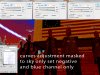
had a quick dabble in this. Only did a colour balance correction and an obscure curves adjustment for the sky
results.jpg
 
Thank you all for trying, I'm really grateful for the effort you are putting in to try and achieve this goal. The creator recently posted another edited game-capture which I feel really captures what he is doing. I've tried literally everything and failed to come up with a similar effect. I'm now thinking down the lines of plug-ins and how he may be using one to create his images. Take a look:
48302.png
What do you think? We have all tried separate things and we aren't managing to reach the desired image effect. I wouldn't want such a task to stump Photoshopgurus so I say let's put our heads together and try and come up with something.
 
it would be much easier if you could provide a before edited capture and an after capture then we could work out the differences a lot easier a link to the site would be an idea as well because to me that looks like a basic screen cap from the game no editing involved
 

Back
Top