






Photoshop Tutorials
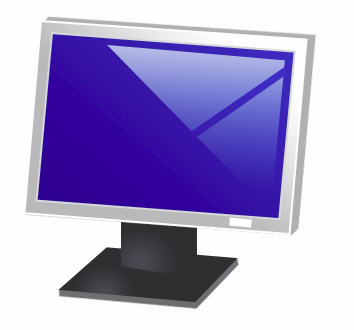
Designing an LCD Monitor
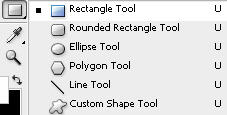
Select rectangular shape tool. |
 |
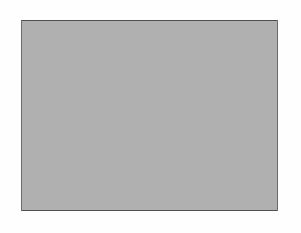
Drag the tool to create a rectangle as shown below. |
|
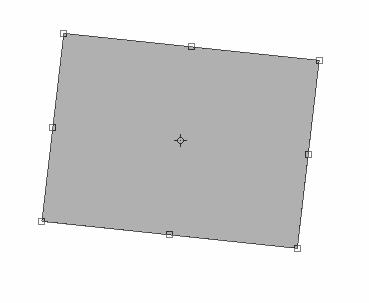
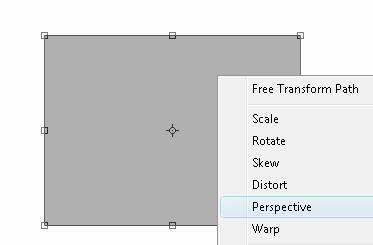
Press Ctrl+T. Right Click and select perspective. |
 |
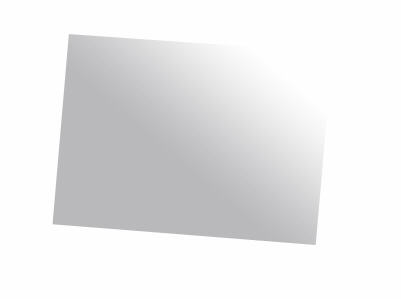
Adjust the handles as shown. |
|
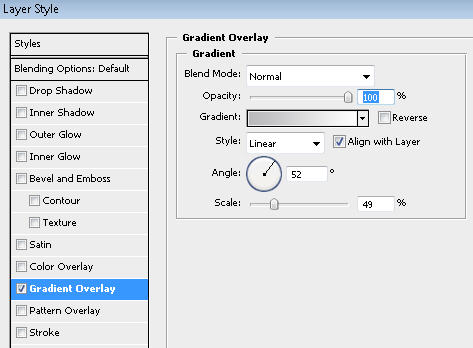
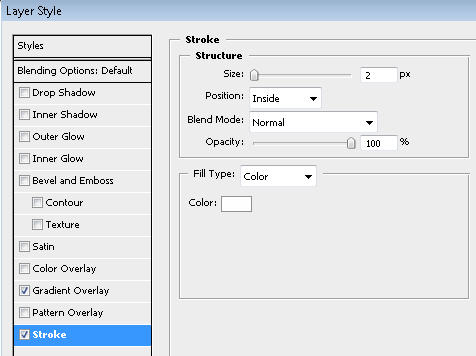
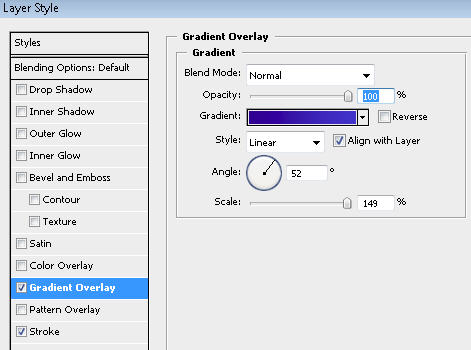
In layer palette double click the layer to open layer style window. Apply settings as shown. |
|
|
 |
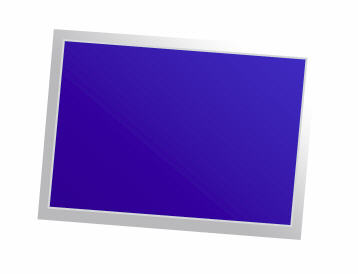
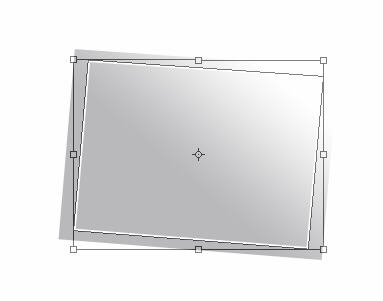
Press Ctrl+J to duplicate the layer. Press Ctrl+T and scale it downwards. |
 |
In layer palette double click the layer to open layer style window. Apply settings as shown. |
|
|
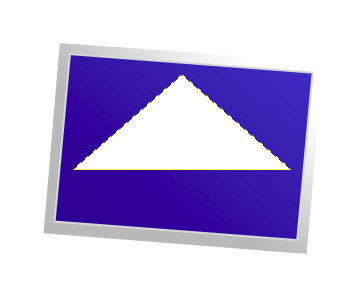
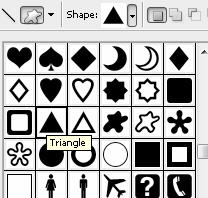
Select custom shape tool(U). From the preset shape at the top bar select Triangle shape. |
 |
Drag the shape as shown below. |
|
Press Ctrl+T and rotate the shape. |
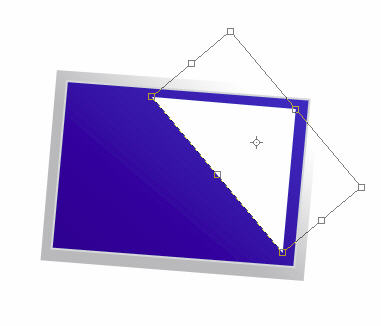 |
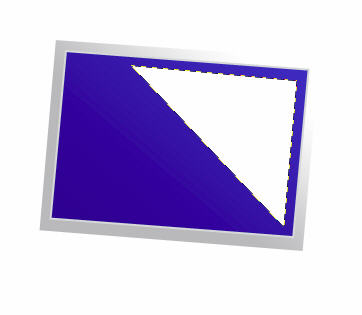 |
In layer palette double click the layer to open layer style window. Apply settings as shown. |
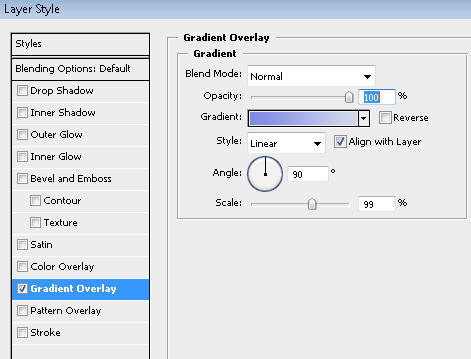 |
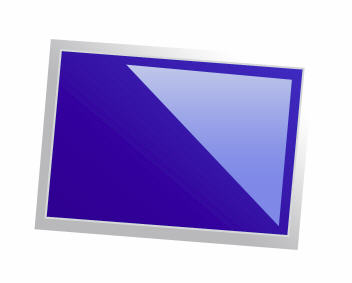 |
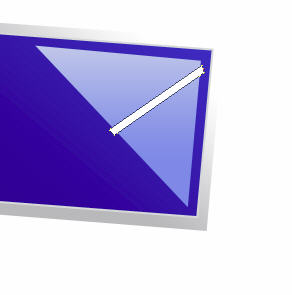
Create a rectangle using rectangular shape tool and rotate it. |
 |
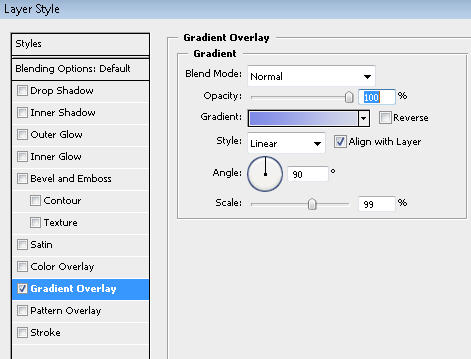
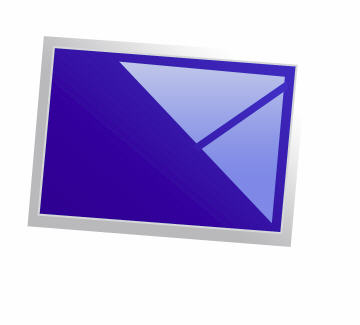
In layer palette double click the layer to open layer style window. Apply settings as shown. |
 |
 |
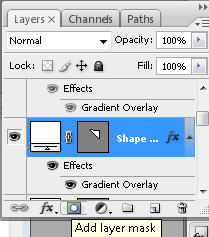
In layer palette click on Add Layer mask button on the bottom of the layer palette. |
 |
Select gradient tool. Create a black to white gradient. Drag from one edge to the other to create a smooth blend as shown below. |
 |
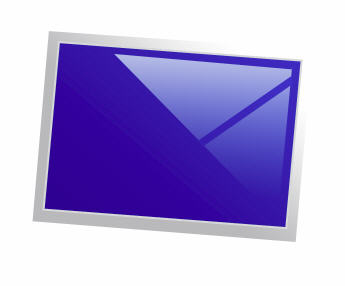 |
Create a rectangle using rectangular shape tool and rotate it slightly. |
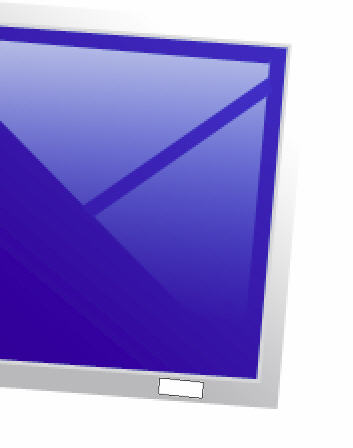 |
Select the first rectangle
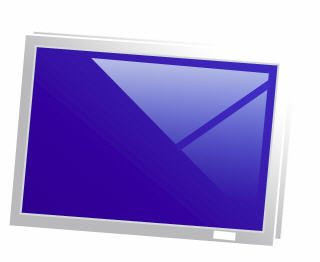
we created i.e. the main silver rectangle. Press Ctrl+J to duplicate the
layer.Move this layer one step below the original layer in layer order
in layer palette. ( from here till next three steps are covered in the flash clip ) |
 |
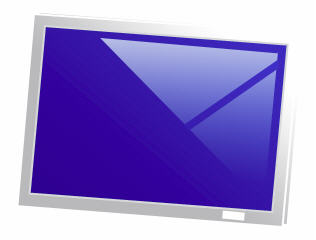
Press and hold Alt key and keep pressing down and left arrow key to create 3D extrusion. |
 |
Select all duplicate layers in layer palette. Press Ctrl+E to merge them together. In layer palette double click the layer to open layer style window. Apply settings as shown. |
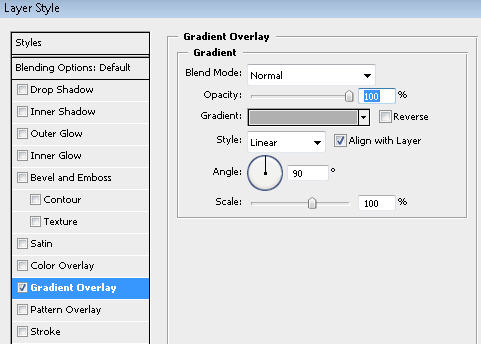 |
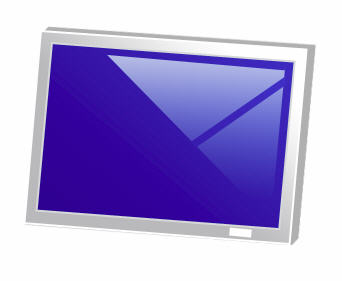 |
Have a look at the flash
clip below to see how we did this. |
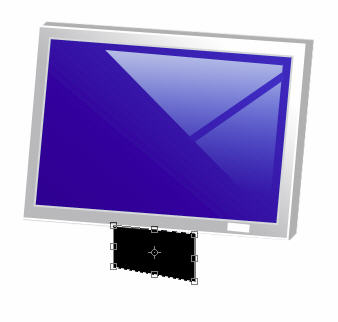
Create a rectangle using rectangular shape tool. |
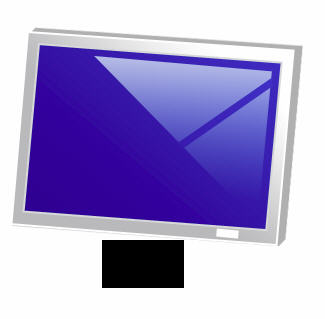 |
Press Ctrl+T. Right Click and select Skew. |
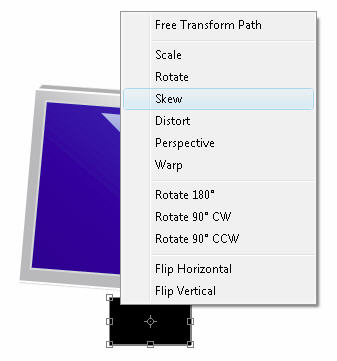 |
Adjust the handles as shown. |
 |
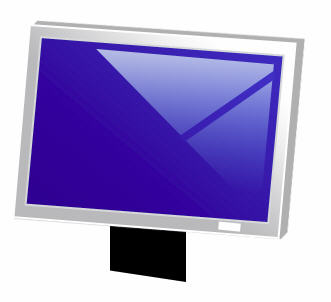 |
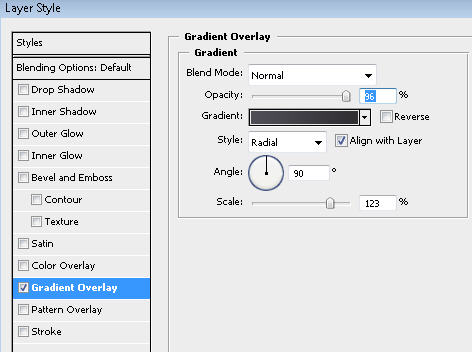
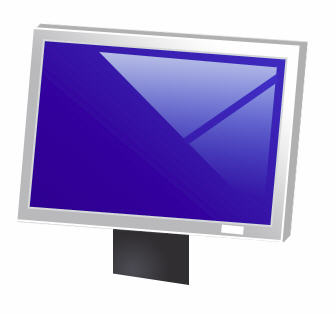
In layer palette double click the layer to open layer style window. Apply settings as shown. |
 |
 |
Create another rectangle for the base using rectangular shape tool. |
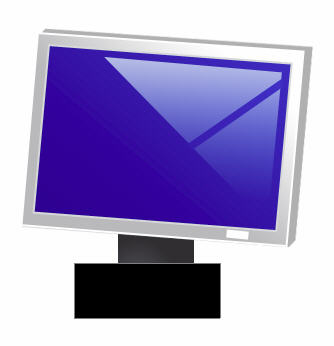 |
Press Ctrl+T. Right Click and select Skew. |
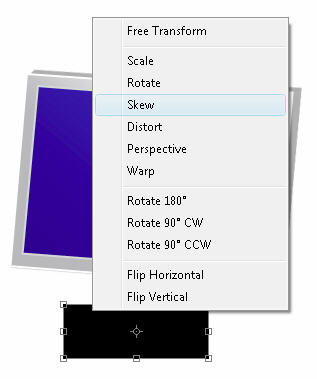 |
Adjust the handles as shown. |
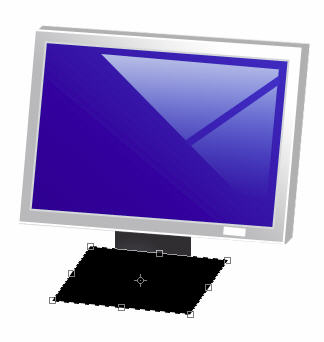 |
Move this layer below the layer in layer order in layer palette. |
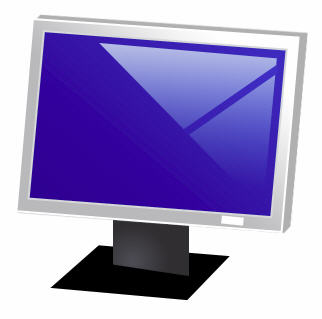 |
In layer palette double click the layer to open layer style window. Apply settings as shown. |
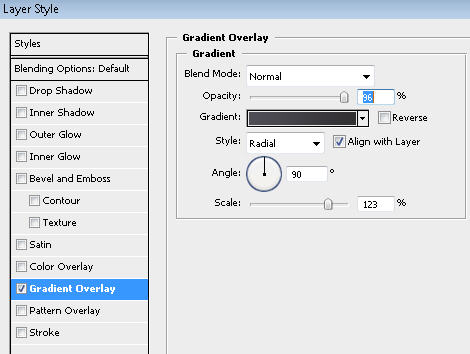 |
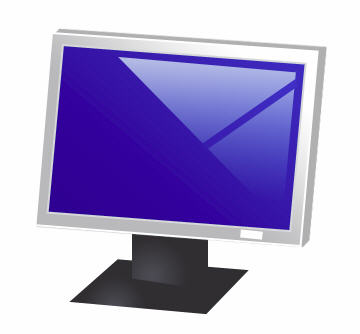 |
Press and hold Alt key and keep pressing down arrow key to create 3D extrusion. |
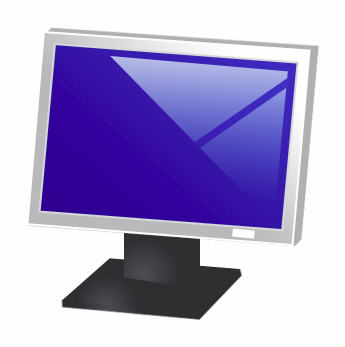 |
Select all duplicate layers in layer palette. Press Ctrl+E to merge them together. In layer palette double click the layer to open layer style window. Apply settings as shown. |
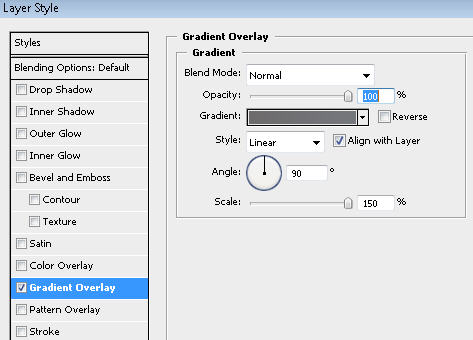 |
 |