






Photoshop Tutorials
Drawing a Wireless Mouse
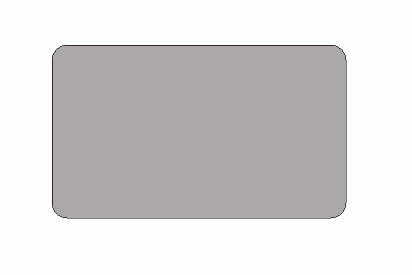
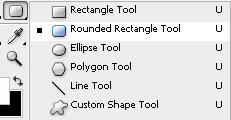
Select a rounded rectangle
shape tool. |
 |
Drag the tool to create a
rounded rectangle as shown below. |
|
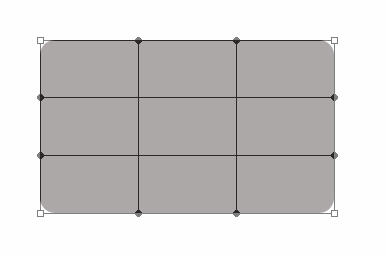
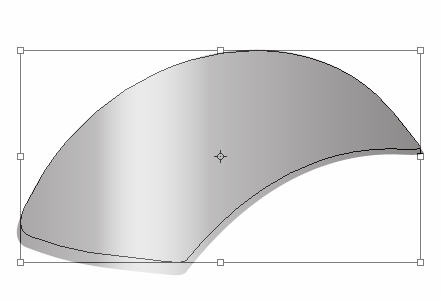
Press Ctrl+T. Right Click
and select Warp. |
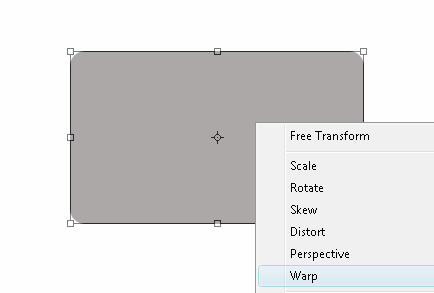 |
|
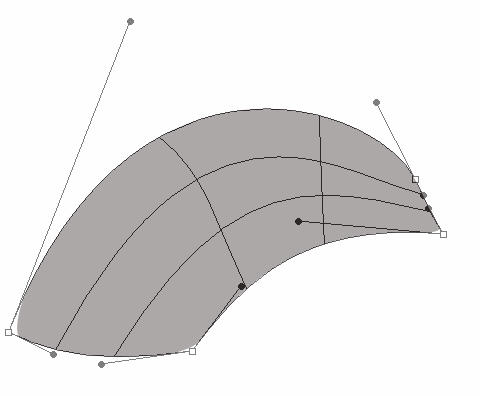
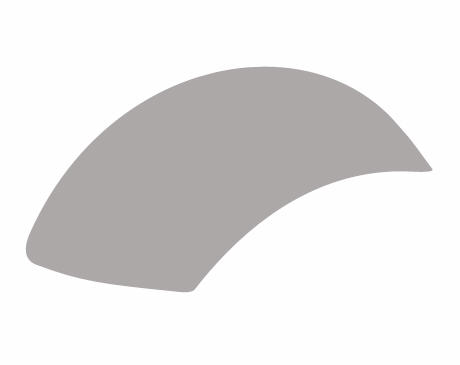
Adjust the handles as shown. |
|
|
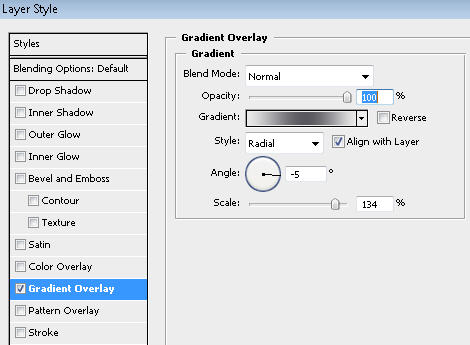
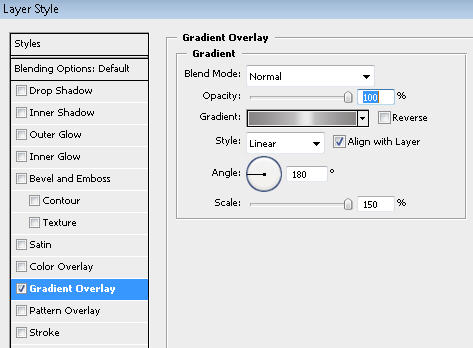
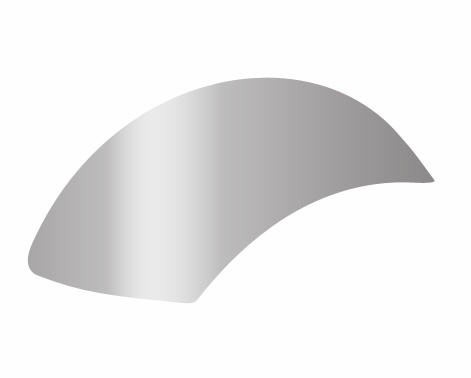
In layer palette double click
the layer to open layer style window. Apply settings as shown. |
 |
 |
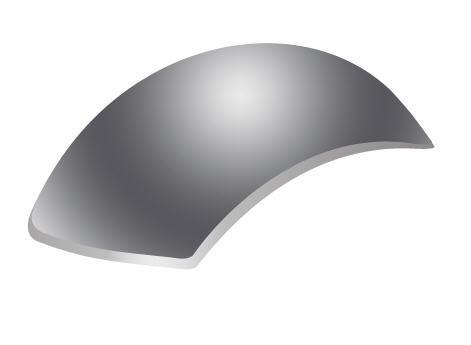
Press Ctrl+J to duplicate
the layer and press Ctrl+T and scale it as shown below. |
|
In layer palette double click
the layer to open layer style window. Apply settings as shown.
|
|
 |
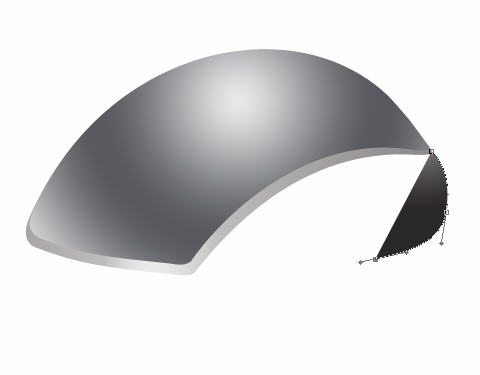
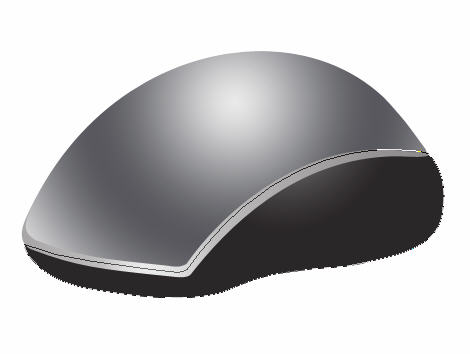
Select pen tool and create
a shape as shown below. |
|
 |
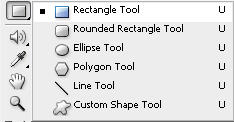
Select rectangle shape tool from tool palette. |
 |
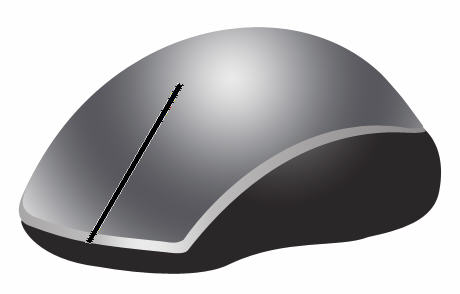
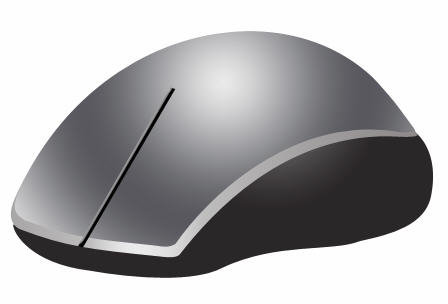
Create a rectangle shape
and rotate as shown below. |
 |
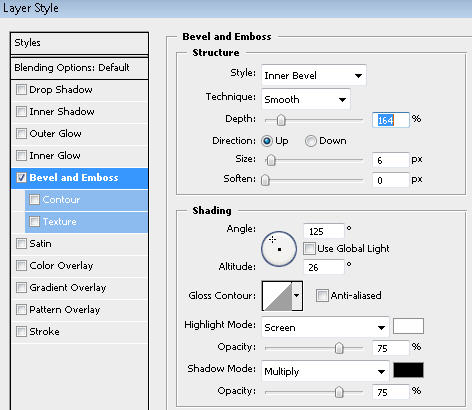
In layer palette double click
the layer to open layer style window. Apply settings as shown. |
 |
 |
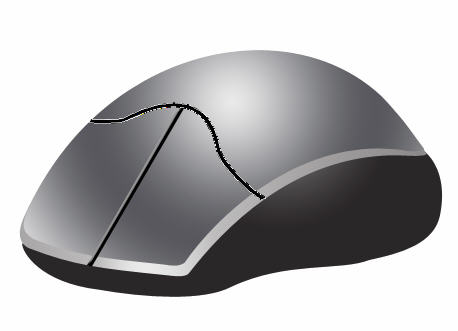
Using pen tool create a shape
as shown below. |
 |
| Have a look at the flash clip below to see how we did this. |
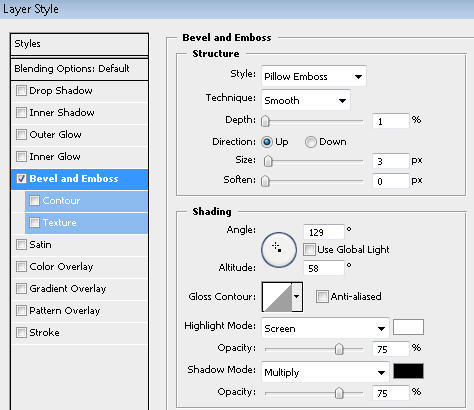
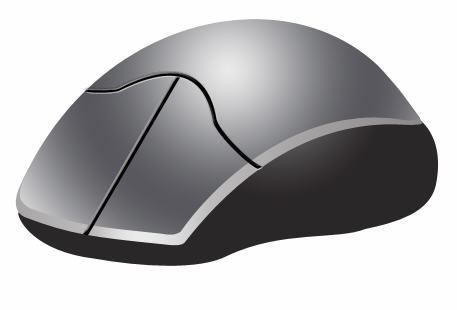
In layer palette double click
the layer to open layer style window. Apply settings as shown. |
 |
 |
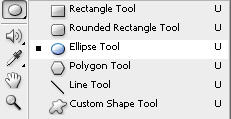
Select Ellipse tool from
tool palette. |
 |
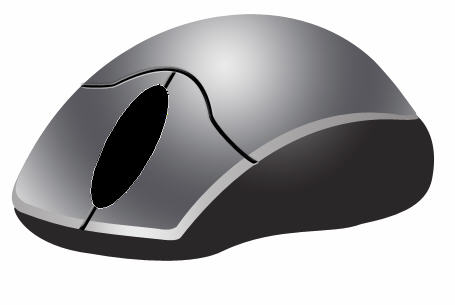
Draw an ellipse and rotate
as shown below. |
 |
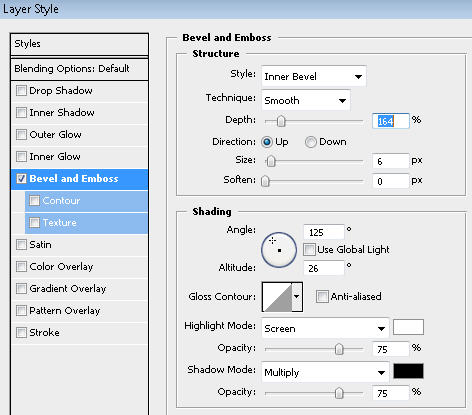
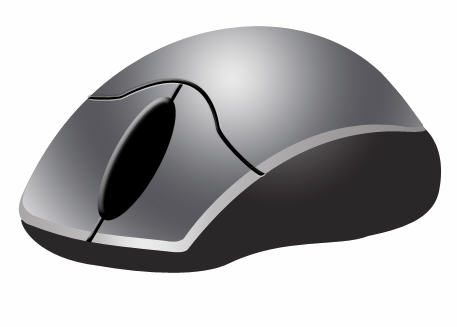
In layer palette double click
the layer to open layer style window. Apply settings as shown. |
 |
 |
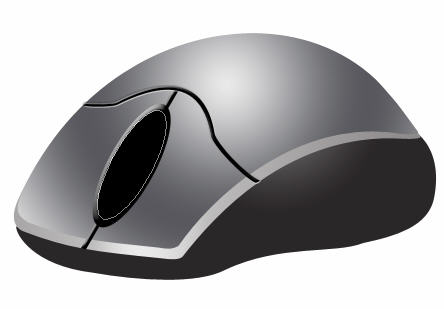
Create another ellipse as
shown below. |
 |
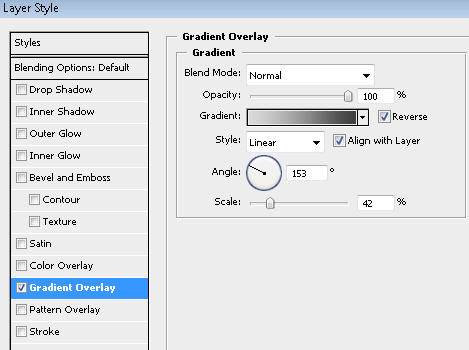
In layer palette double click
the layer to open layer style window. Apply settings as shown. |
 |
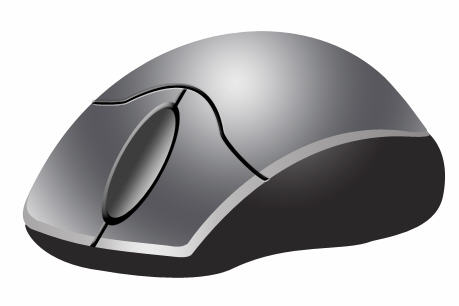 |
Select the first ellipse
layer. Press Ctrl+J to duplicate the layer. Move this layer above all
the layer in layer order in layer palette. Press Ctrl+T and scale it down. |
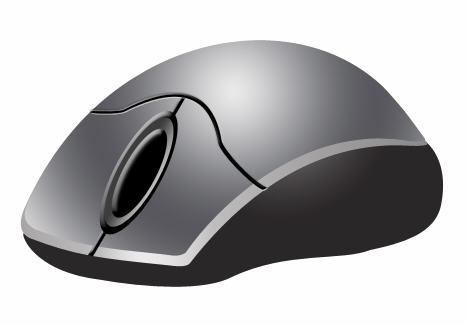 |
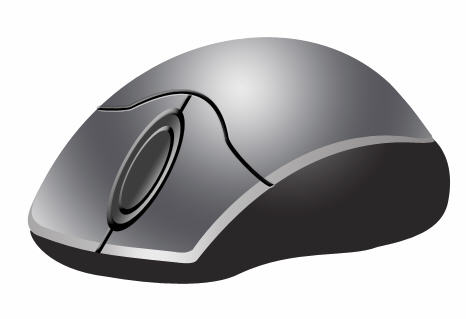
Now select the ellipse layer
below this layer. Press Ctrl+J to duplicate the layer. Move this layer
above all the layer in layer order in layer palette. Press Ctrl+T and
scale it down. |
 |
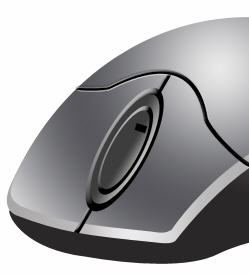
Create a tiny rectangle using
rectangular shape tool. |
 |
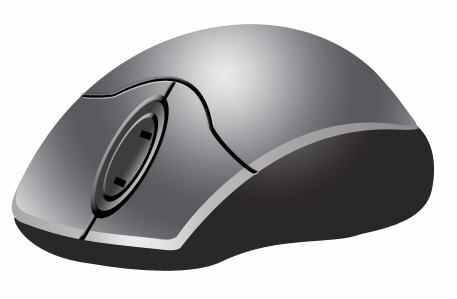
Press Ctrl+J to duplicate
the layer. Set the rectangle as shown below. |
 |
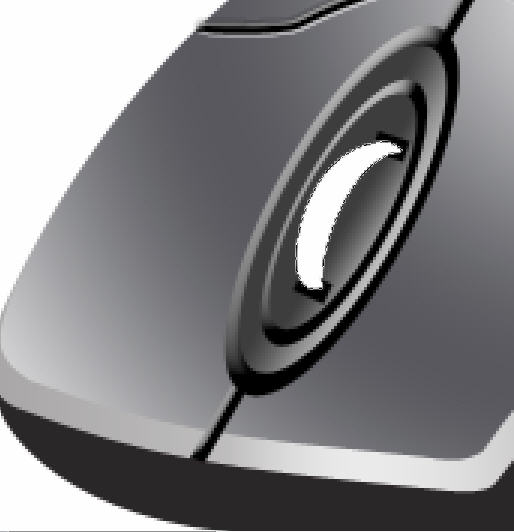
Using pen tool create a shape
as shown below. |
 |
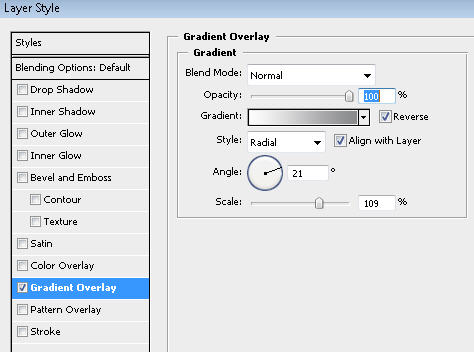
In layer palette double click
the layer to open layer style window. Apply settings as shown. |
 |
 |