







Photoshop Tutorials
How to use QR Codes for Business Cards in Photoshop
 With the plethora of smartphones and tech-savvy clients and customers today, it can be a great idea to add a QR code(Quick Response code) to your business cards.
When anyone snaps a pic of your QR code with their phone, it can give them information about your business, a link to your website, your email, phone number and other contact information, or anything else you want to embed in the QR code.
How does it work?
The QR code is a specific matrix barcode (two-dimensional code), readable by dedicated QR barcode readers and camera phones or other mobile devices. The QR code is made up of black modules arranged in square patterns on a white background. The information encoded in the pattern can be text, a URL or other data. When a QR enabled application on a mobile device is used, it decodes the data and displays it for the user.
Why put a QR code on your business card?
One obvious reason is the impressions it will give people when they see it. It lets people know you are tech savvy and
ready to shre your digital information. It's also extremely useful for anyone who wants to save your information but may not save your business card. It gives them easy and fast access to your website, email and other information and best of all they don't have to type it into their mobile phone.
Ok, I'm sold. How do I get a QR code into Photoshop to put on my business card?
| Step 1 - Generate the QR Code Encoded with your Information |
- Head over to this handy online QR code generator.
- Enter the information you want to encode.
- Choose the XL size to get a high quality image you can download.
- The image is generated as a high quality PNG graphic.
| Step 2 - Save the QR code image and open it in Photoshop. |
- Right click on the image and save it to your computer.
- Open the image in Photoshop.
- Add the image as a new layer to your business card design.
- If necessary, press Ctrl+T to resize the QR code image so it fits nicely in your design. It should be large enough to take a picture of easily.
| Some great examples of QR codes on business cards: |
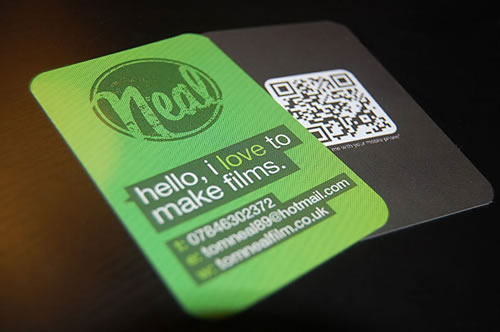
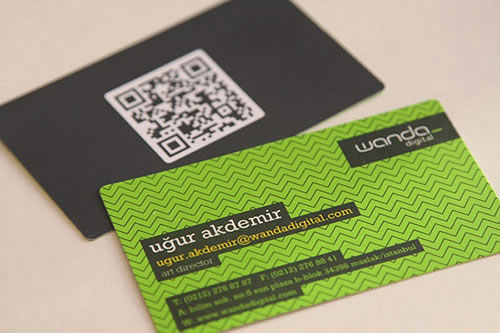
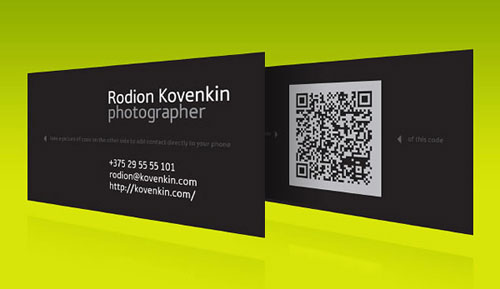
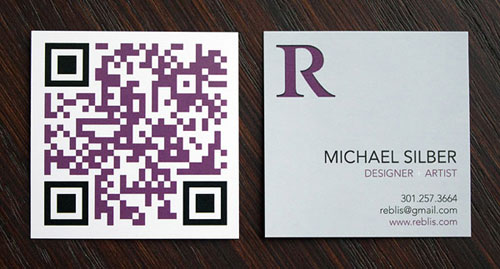
| What are you waiting for? Go get your new cards printed! |
For help, advice, tips and tricks, challenges, feel free to visit our